TuteeDex Developer Guide
Acknowledgements
- TuteeDex is based on AddressBook-Level3 by the SE-EDU initiative.
- Libraries used: JavaFX, Jackson, JUnit 5.
- Fonts bundled in
src/main/resources/fonts: Press Start 2P by The Press Start 2P Project Authors, under the SIL Open Font License 1.1 (licence included asPressStart2P-OFL.txt), and Pokemon Pixel Font (pokemon_pixel_font.ttf) by SpyroSteak, under CC BY-SA 3.0. The interface theme is inspired by the Pokedex in Pokemon Black 2 and White 2. - Notable uses of AI:
- OpenAI Codex and Anthropic Claude were used for preliminary PR reviews, code quality checks, and checking the UG and DG against the product.
- Codex and Claude were used to help write and fix parts of the code and tests.
- ChatGPT was used to discuss design options, such as how subjects and lesson slots are modelled.
- Claude was used to draft and update parts of the UG and DG, and to generate screenshots and diagrams.
Setting up, getting started
Refer to the guide Setting up and getting started.
Design
Architecture
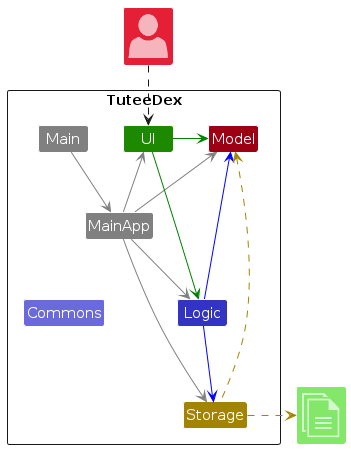
The Architecture Diagram given above explains the high-level design of the App.
The following provides a quick overview of the main components and their interactions.
Main components of the architecture
Main and MainApp are in charge of the app launch and shut down. Main is the Java entry point that launches MainApp, which initializes and connects the other components.
- During initialization,
MainApploads user preferences and address-book data throughStorage, createsModelandLogic, and then createsUIwith theLogicAPI. - During shutdown,
MainAppsaves the current user preferences throughStorage.
The bulk of the app's work is done by the following four components:
UI: The UI of the App.Logic: The command executor.Model: Holds the data of the App in memory.Storage: Reads data from, and writes data to, the hard disk.
Commons represents a collection of classes used by multiple other components.
How the architecture components interact with each other
The Sequence Diagram below shows how the components interact with each other for the scenario where the user issues the command delete confirm, right after delete 1 has previewed the first student.
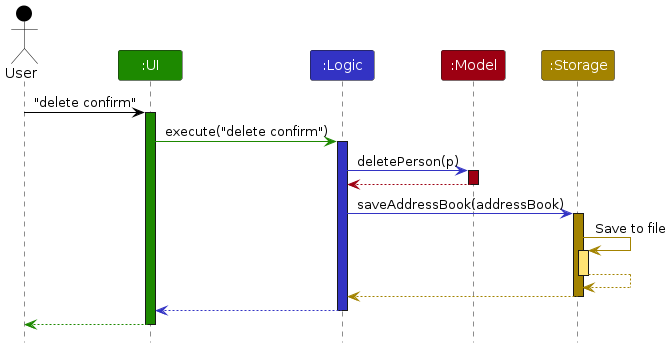
Each of the four main components (also shown in the diagram above),
- defines its API in an
interfacewith the same name as the Component. - provides its functionality through a concrete manager class (
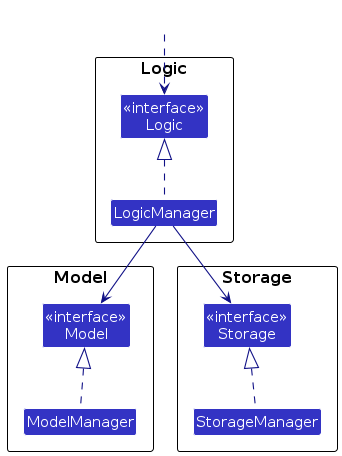
LogicManager,ModelManager,StorageManagerandUiManager) that implements the corresponding API interface.
For example, the Logic component defines its API in Logic.java and implements it in LogicManager.java. Other components interact with a component through its interface rather than its concrete class, preventing them from coupling to that component's implementation, as illustrated in the following partial class diagram.
The sections below give more details of each component.
UI component
The API of this component is specified in Ui.java
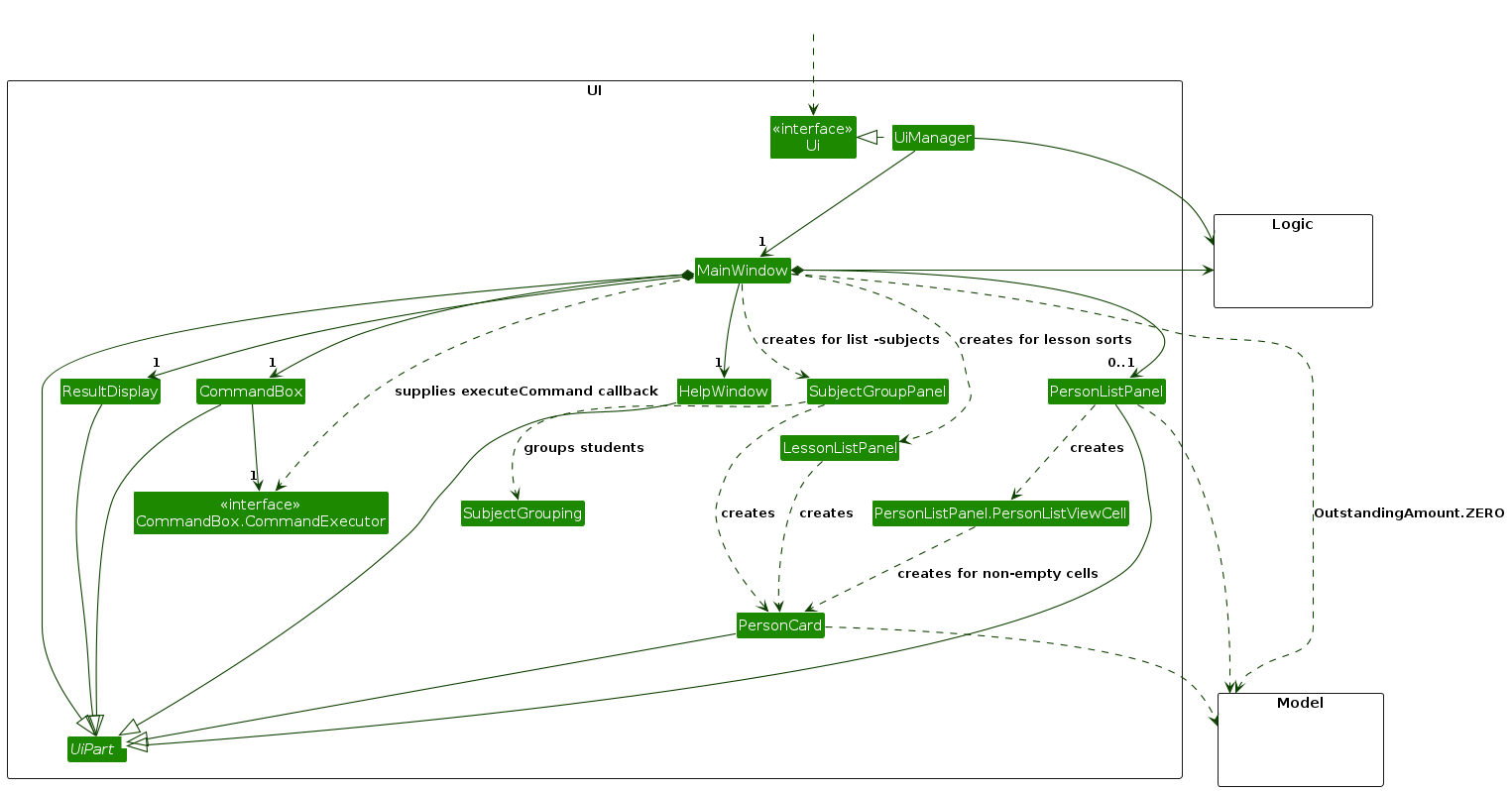
UiManager implements Ui and starts the JavaFX interface by creating and showing a MainWindow, then filling its placeholders. It also handles fatal errors during UI initialization. UiManager and MainWindow both keep a reference to Logic.
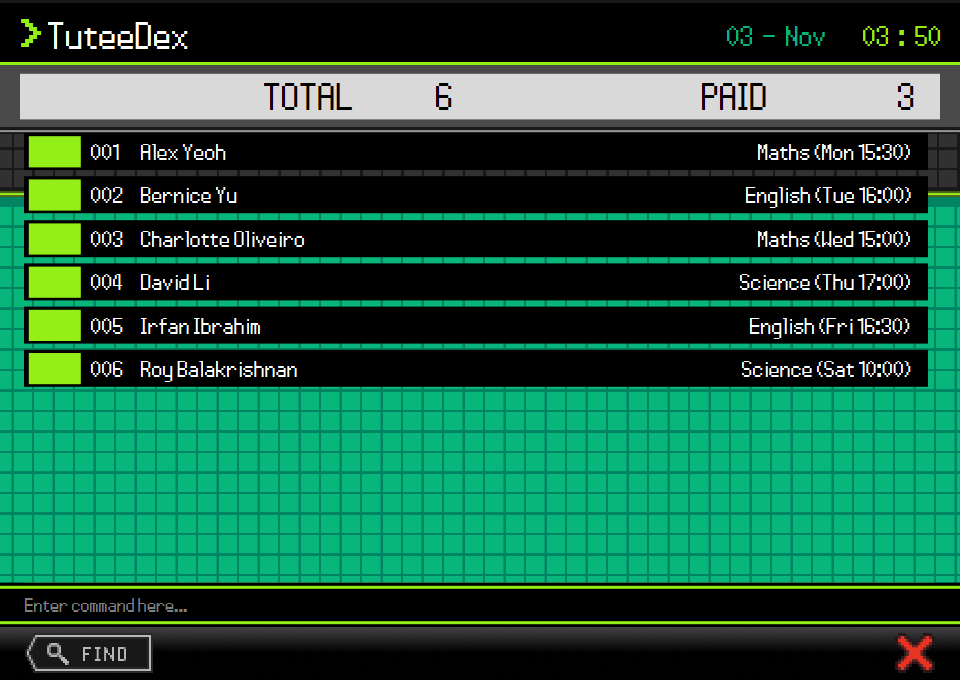
MainWindow assembles the TuteeDex interface:
- The header contains the application title, the local date (
DD - MMM, with an English month abbreviation), and the local 24-hour time (HH : MM). A JavaFXTimelinerefreshes the clock every second while the main window is shown and stops when it is hidden. The clock can be supplied in tests. ResultDisplayshows either the TOTAL/PAID summary or command feedback, with line breaks replaced by|. Feedback that exceeds the normal display width switches to a wrapping two-line display, with vertical scrolling for additional text. Resizing re-evaluates the available width. Result displays have no tooltip.PersonListPaneldisplays the filteredObservableList<Person>obtained fromLogic. Its customPersonListViewCellcreates aPersonCardfor each non-empty cell, so changes to the observable list update the displayed students.MainWindowputs one of three panels in the list area, based on theListPresentationof eachCommandResult.PersonListPanelis the normal list.SubjectGroupPanelshowslist -subjects; it usesSubjectGroupingto group the displayed students under each subject, and each student keeps one shared index.LessonListPanelreplaces the normal list when the current sort usesslot/, with one row per student showing that student's next lesson. Both are rebuilt fromLogicafter each command that changes the list.PersonCardshows a three-digit, zero-padded list index, the student's name, and subjects. After reserving the icon, index, spacing, and insets, width bindings divide the remaining space between the name and subject labels in a 3:2 ratio. JavaFX adds trailing...only when the text exceeds the label width; the underlying text remains complete. Tooltips expose the full profile and subjects, and accessible text includes the profile details. Grouped and lesson-sorted rows let the card grow while keeping the separate lesson-time label at the right edge.CommandBoxaccepts commands at the bottom of the window. The FIND button callsprepareFind(), which turns the current input into afindcommand: blank input becomesfind, existing text such asAmybecomesfind Amy, and input that already starts withfindis kept. It then focuses the input and moves the caret to its end without executing a command.CommandBoxalso keeps a history of the commands entered in this session. Up shows the previous command and Down the next one; going past the newest command restores the text that was being typed. A command is not added again if it repeats the one before it. The history is not saved when the app closes.- The exit button and
exitcommand close the application window. Help is available through thehelpcommand and F1, using aHelpWindowcreated withMainWindowand reused when requested.
MainWindow, CommandBox, ResultDisplay, PersonListPanel, PersonCard, and HelpWindow inherit from the abstract UiPart<T> class. SubjectGroupPanel and LessonListPanel build their JavaFX nodes in code and reuse PersonCard for each student. UiPart loads an FXML layout, sets the controller, and exposes the root JavaFX object through getRoot(). StatusBarFooter and its FXML file remain in the source tree, but the current MainWindow does not instantiate or display a status bar; it is omitted from the diagram above.
The layouts are defined in src/main/resources/view. For example, MainWindow.fxml defines the main layout and loads TuteeDex.css, while PersonListCard.fxml defines the layout for PersonCard. The main window also loads the bundled pixel fonts. HelpWindow has its own FXML layout and stylesheet.
The student-area background is anchored below the summary/feedback panel. One repeating
green tile fills the area at a fixed scale; a separate 80-pixel-high region displays
the original image's dark band without overlaying a second green grid. The outer
VBox disables pixel snapping to avoid a bottom-edge gap from cumulative rounding
at fractional display scales. FIND and exit are image-only buttons with transparent
backgrounds, accessible labels, and tooltips. The application and documentation use
the TuteeDex icon.
HelpWindow renders command formats as single-line JavaFX labels in a scroll pane,
with full text in tooltips. Gradle bundles docs/UserGuide.md as a classpath resource;
the help window reads the inline-code entries on its Format: lines, so the guide
is the single source for the displayed formats, including sorting. Its browser
callback comes from the running MainApp's HostServices, through UiManager
and MainWindow; it does not embed a browser. The close button and Escape call
Stage.close(). MainWindow uses the same pixel close icon but retains its application
exit handler.
The UI depends on Model classes to display Person data and to identify students whose outstanding amount is zero for the PAID count. Commands and access to the filtered list and GUI settings go through Logic.
The following sequence diagram shows submission of a successful list command and the resulting summary:
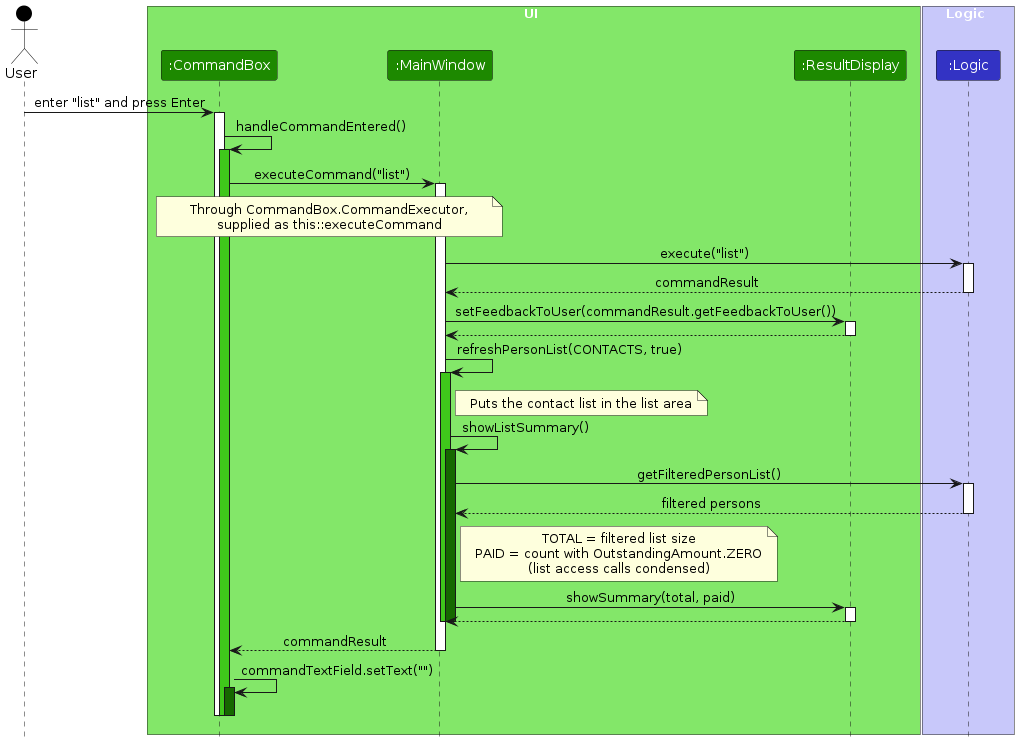
- When Enter is pressed,
CommandBoxignores an empty string; otherwise, it passes the input to itsCommandExecutor.MainWindowsupplies this callback asthis::executeCommand, keepingCommandBoxindependent ofLogic. MainWindowcallsLogic.execute(commandText)and displays the returnedCommandResultfeedback. For a successfullistcommand, it then replaces that feedback with the TOTAL/PAID summary.showListSummary()reads the filtered list: TOTAL is its size, and PAID counts students whose outstanding amount equalsOutstandingAmount.ZERO. The summary is calculated at startup and after successfullistcommands; it is not continuously bound to list changes.MainWindowalso checks the result's help and exit flags. Help opens or focuses the existingHelpWindow; exit saves the current window size and position throughLogic.setGuiSettings(), then hides the help and main windows. The exit button uses the same exit handler, and F1 uses the help handler.- When execution succeeds,
CommandBoxclears the input. IfLogicthrows aCommandExceptionorParseException,MainWindowdisplays the exception message and rethrows it.CommandBoxretains the input and applies its error style, which is removed when the text next changes.
The sequence diagram omits error handling, help/exit flag handling, and the observable list's JavaFX cell updates for clarity.
For List commands, text such as Listed N contacts., No contacts match the specified subjects.,
No contacts match the specified tags., and No archived contacts. remains in the CommandResult
and is logged by MainWindow, but the visible result is the TOTAL/PAID banner. The optional -summary
changes the command's returned feedback; it does not opt into a different GUI display.
This applies to plain, filtered, archived and subject-grouped List modes. Empty results show both counts
as zero. Grouped counts use unique students, including subjectless students, rather than grouped rows.
Invalid List input follows the exception path instead: error feedback is shown and the current list remains.
Logic component
API : Logic.java
The partial class diagram below shows the command-execution boundary of the Logic component.
LogicManager implements Logic and keeps one reference each to AddressBookParser, Model, and Storage.
It parses command text into a Command, executes the command against the model, and saves the address book when
Command#requiresAddressBookSave() returns true. Commands that change no students (view, help, exit, export, list, find, sort, and the
delete, clear and import previews) return false, so they never write the data file.
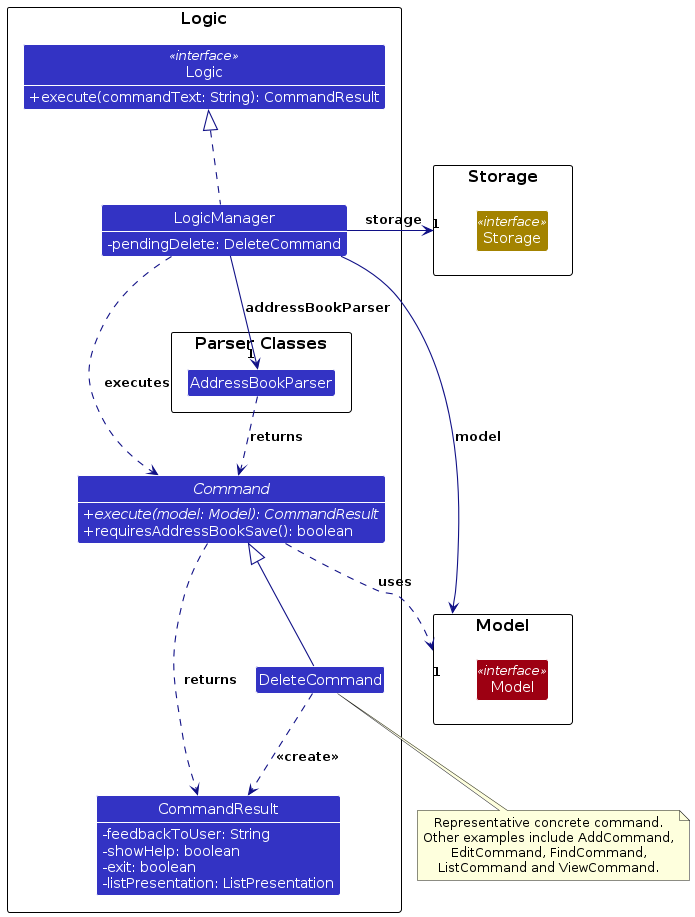
DeleteCommand represents the concrete command subclasses in this diagram; its note lists other examples.
Command-specific parser classes and utility classes are omitted here. CommandResult carries feedback, the
showHelp and exit flags, and a ListPresentation (CONTACTS, SUBJECT_GROUPS, UNCHANGED or REFRESH)
that tells MainWindow which list panel to show. LogicManager also holds pendingDelete, the deletion
previewed by the previous command, if any.
Deleting a student takes two commands. delete 1 only previews: DeleteCommand checks the index, returns the
student's details with ListPresentation.UNCHANGED, and does not save. LogicManager then stores a
DeleteCommand bound to that exact Person as pendingDelete. Every later command clears pendingDelete before
it is parsed, so only an immediately following delete confirm can use it.
The sequence diagram below follows a successful execute("delete confirm") call right after delete 1.
It assumes that saving succeeds.
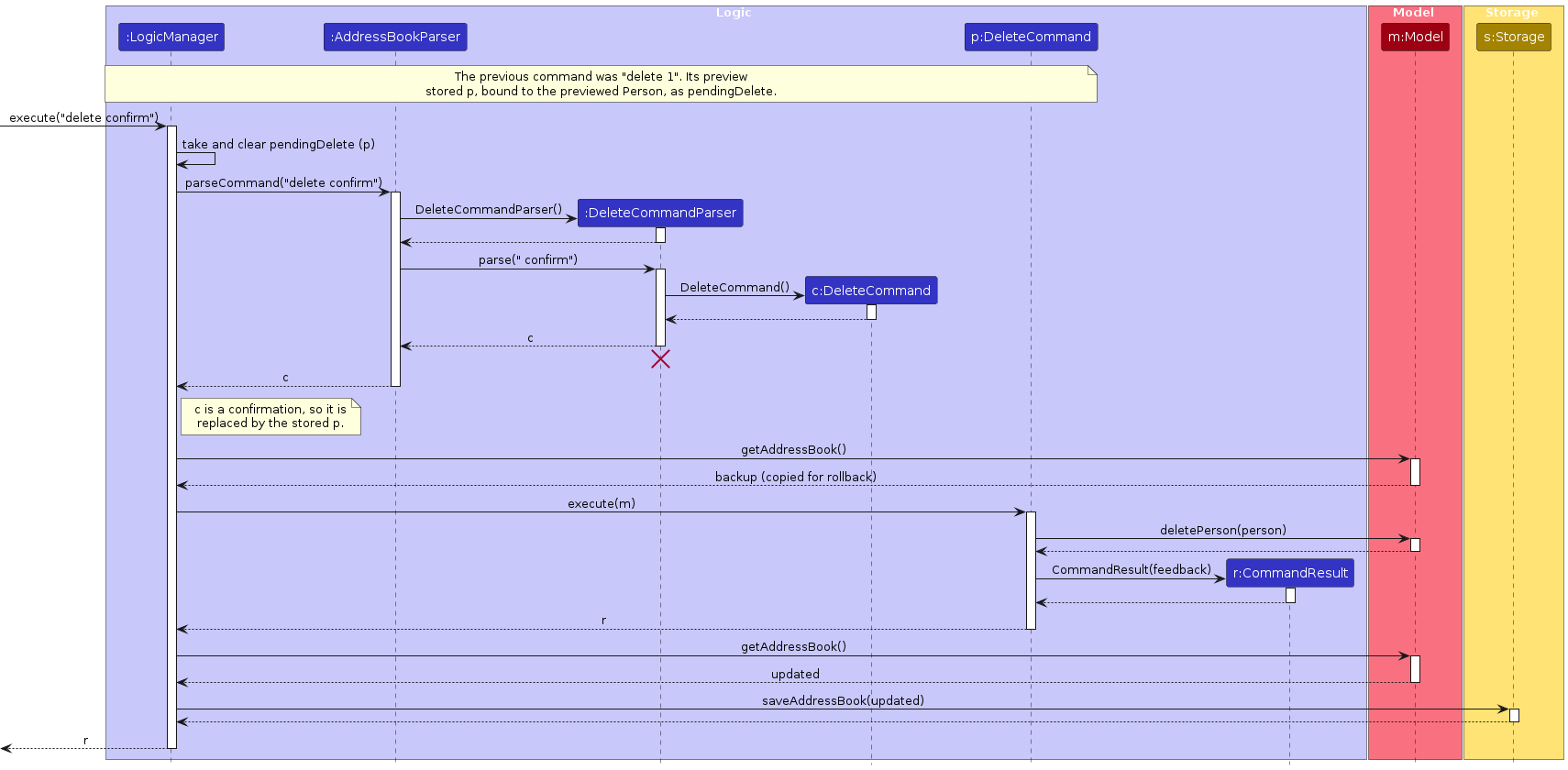
How the Logic component works:
LogicManager.execute(commandText)first takespendingDeleteand clears it. It then callsAddressBookParser.parseCommand(commandText), which createsDeleteCommandParser. Fordelete confirm, the parser returns a confirmationDeleteCommand.- Because the command is a confirmation,
LogicManagerreplaces it with the stored pending command. If there was no preview, it throws aCommandExceptioninstead. - As the command saves,
LogicManagercopies the address book first. It then callsexecute(model). The pending command checks that itsPersonis still displayed, passes it tomodel.deletePerson(person)and returns aCommandResultwith the success feedback. LogicManagergets the updated address book fromModeland passes it toStorage.saveAddressBook(). Only after saving succeeds does it update the remembered view and return the result to the caller.
Invalid command syntax produces a ParseException; an out-of-range Delete index produces a CommandException
during the preview, before any student is deleted. These failure paths are omitted from the success sequence. A storage failure
also becomes a CommandException. Before running a command that saves, LogicManager copies the address book,
and if saving fails it puts that copy back with Model#setAddressBook(). The students shown then match the saved
file, and retrying a command such as charge 1 5 does not apply it twice.
Here are the other classes in Logic (omitted from the class diagram above) that are used for parsing a user command:
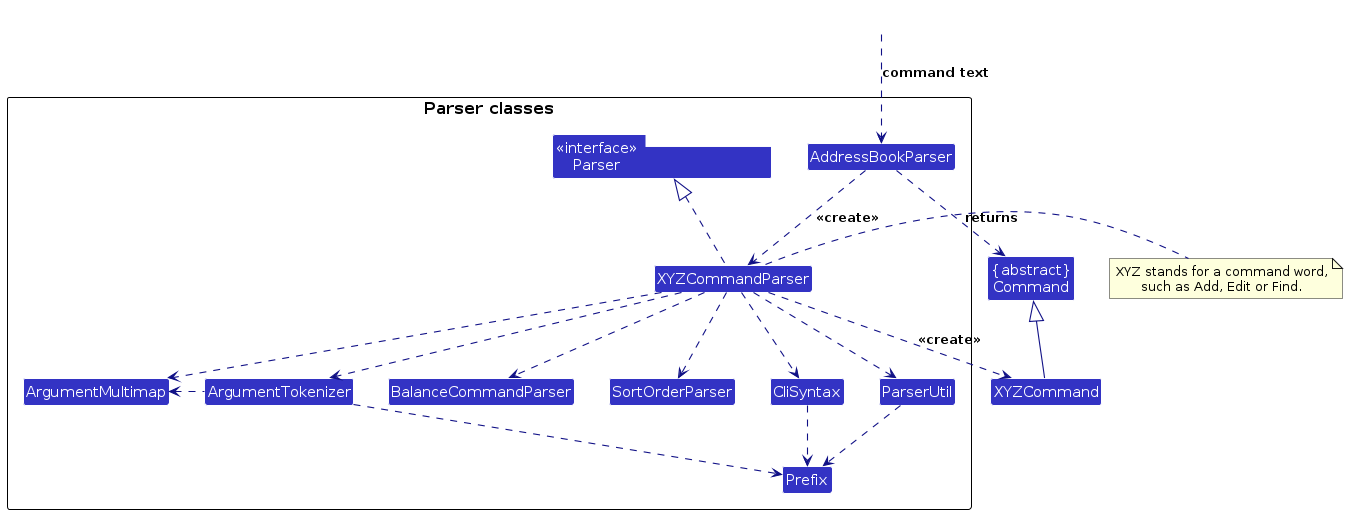
How the parsing works:
AddressBookParserfirst separates the command word from its arguments and dispatches the input to the matching command parser. The current command-specific parsers areAddCommandParser,EditCommandParser,DeleteCommandParser,ClearCommandParser,PaidCommandParser,ChargeCommandParser,FindCommandParser,ListCommandParser,SortCommandParser,ArchiveCommandParser,UnarchiveCommandParser,ExportCommandParser,ImportCommandParser, andViewCommandParser.- Commands without arguments (
exitandhelp) are constructed directly byAddressBookParser. All other supported command words are delegated to a parser that creates the corresponding concreteCommandobject. The diagram shows these parsers asXYZCommandParser. PaidCommandParserandChargeCommandParsershareBalanceCommandParser, which reads an index and an amount.SortCommandParserpasses sort criteria toSortOrderParser.CsvPersonParser, used byImportCommand, reads one CSV row rather than command text, so it is not part of this diagram.- The command parsers implement the generic
Parser<T extends Command>interface. Prefix-based parsers useCliSyntaxandPrefixto identify fields,ArgumentTokenizerto split the input, andArgumentMultimapto collect repeated values.ParserUtilvalidates and converts values such as indexes, subjects, tags, notes, names, and contact fields before the command is created. - Invalid command words, malformed arguments, unsupported prefixes, duplicate fields, and invalid field values result in a
ParseException; the command is not executed.
Model component
API : Model.java
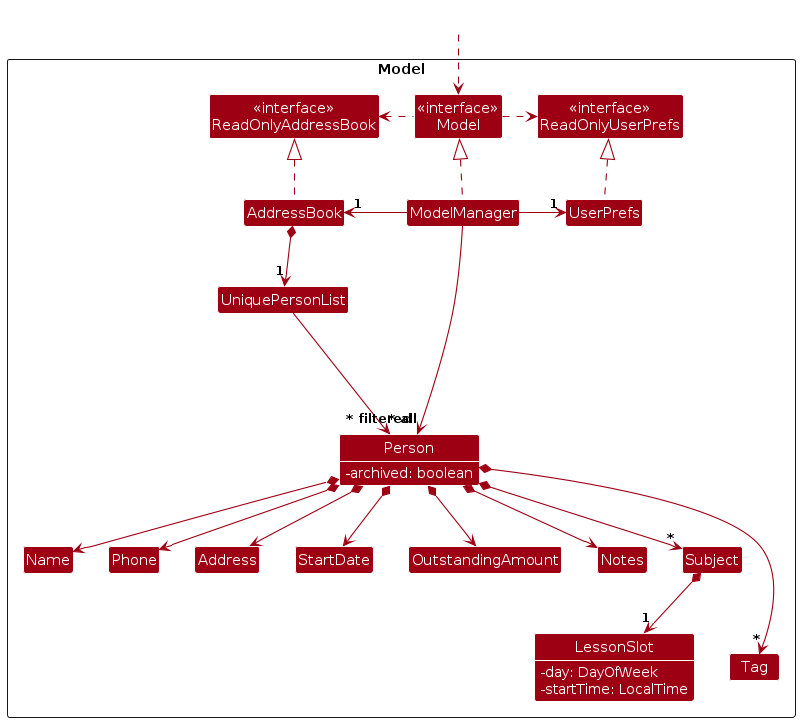
The Model component,
- stores the address book data i.e., all
Personobjects (which are contained in aUniquePersonListobject). - stores each student's subjects as
Subjectobjects. EachSubjectowns one requiredLessonSlot, which records aDayOfWeekand aLocalTimestart time. - stores the
Personobjects selected by the current filter, such as search results, in a separate filtered list. It exposes this list as an unmodifiableObservableList<Person>that the UI can observe and bind to, so the UI updates when the list changes. - stores a
UserPrefsobject that represents the user’s preferences (the GUI settings, the last list view and the last sort). This is exposed to the outside as aReadOnlyUserPrefsobject. - does not depend on any of the other three components (as the
Modelrepresents data entities of the domain, they should make sense on their own without depending on other components)
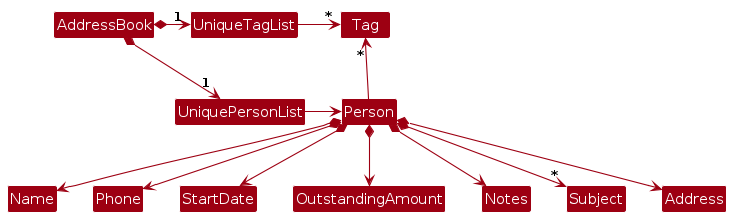
Note: The alternative, arguably more object-oriented, design below keeps a unique list of tags in AddressBook, and each Person references tags from that list. This lets AddressBook maintain one Tag object per unique tag instead of each Person holding its own Tag objects.
Storage component
API : Storage.java
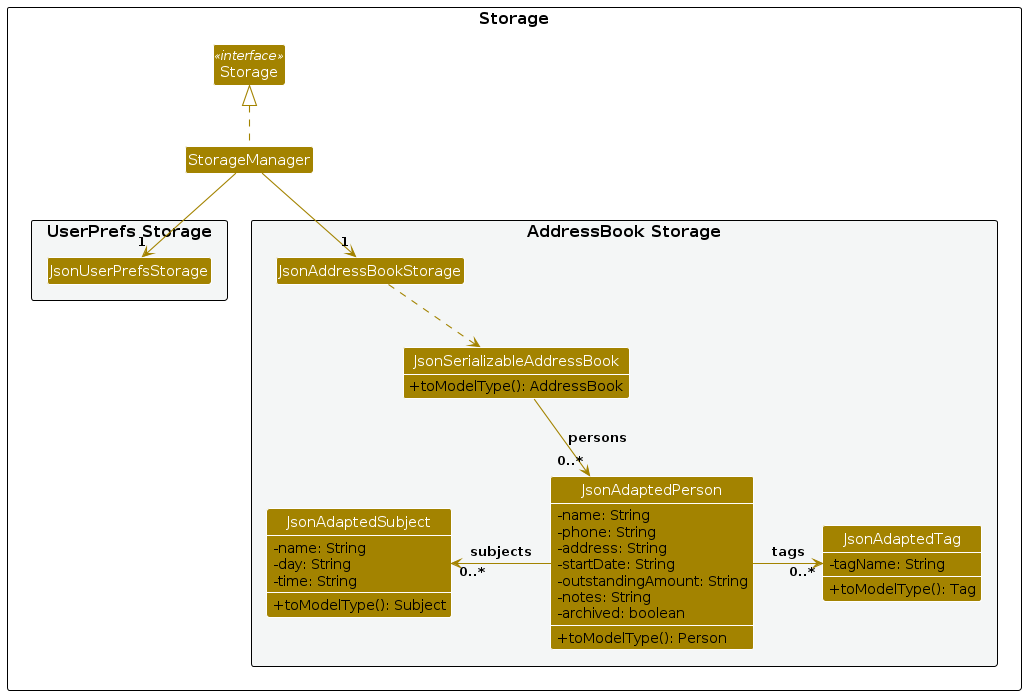
The Storage interface is implemented by StorageManager, which delegates student-data access to
JsonAddressBookStorage and user-preference access to JsonUserPrefsStorage.
JsonAddressBookStoragereads and writesJsonSerializableAddressBook, which contains zero or moreJsonAdaptedPersonrecords. Each record stores the student's core profile fields, notes, archive status, zero or more tags represented byJsonAdaptedTag, and zero or more scheduled subjects represented byJsonAdaptedSubject.JsonAdaptedSubjectstores the subject name, weekly lesson day, and lesson start time. It reconstructs aSubjectwith a non-nullLessonSlotwhen data is loaded.- The
toModelType()methods validate stored values and reconstruct the corresponding model objects.JsonSerializableAddressBook.toModelType()also rejects null student entries and duplicates under the legacy five-field rule (name, phone, address, start date and amount, compared exactly). It then recovers duplicates under the current identity rule (balance-only, or differing only in letter case or spacing) by appendingRecoveredto later names, repeating until neither an original nor a recovered identity collides. All original identities are checked before recovery, so the suffix cannot take a name needed by a later record. Recovery logs a warning, preserves every balance and all other fields, and does not rewrite the source file on read. Normal saving persists the recovered names; subsequent loads need no recovery. Users review the visible suffixes and correct distinguishing identity details withedit; amounts are never automatically merged. These conversions explain the Storage component's dependency on the Model component; model classes are omitted from this diagram. JsonUtil.readJsonFile()rejects a JSON root ofnullthroughDataLoadingException, rather than treating it as a missing file.JsonAddressBookStoragealso translates adapter validation failures intoDataLoadingException.MainApphandles that exception by creating an empty in-memory address book; loading itself does not rewrite the invalid student-data file or load only the valid entries.- Student records without any
subjectsfield load with an empty subject set. Records from v1.4 that store subjects as plain strings are incompatible because they do not contain a lesson day or start time. Older records without tags, notes, or archive status still load with empty tags, empty notes, andarchived = false. User preferences are serialized directly without a separate adapter.
Common classes
Classes used by multiple components are in the seedu.address.commons package.
Implementation
This section describes some noteworthy details on how certain features are implemented.
Sorting criteria
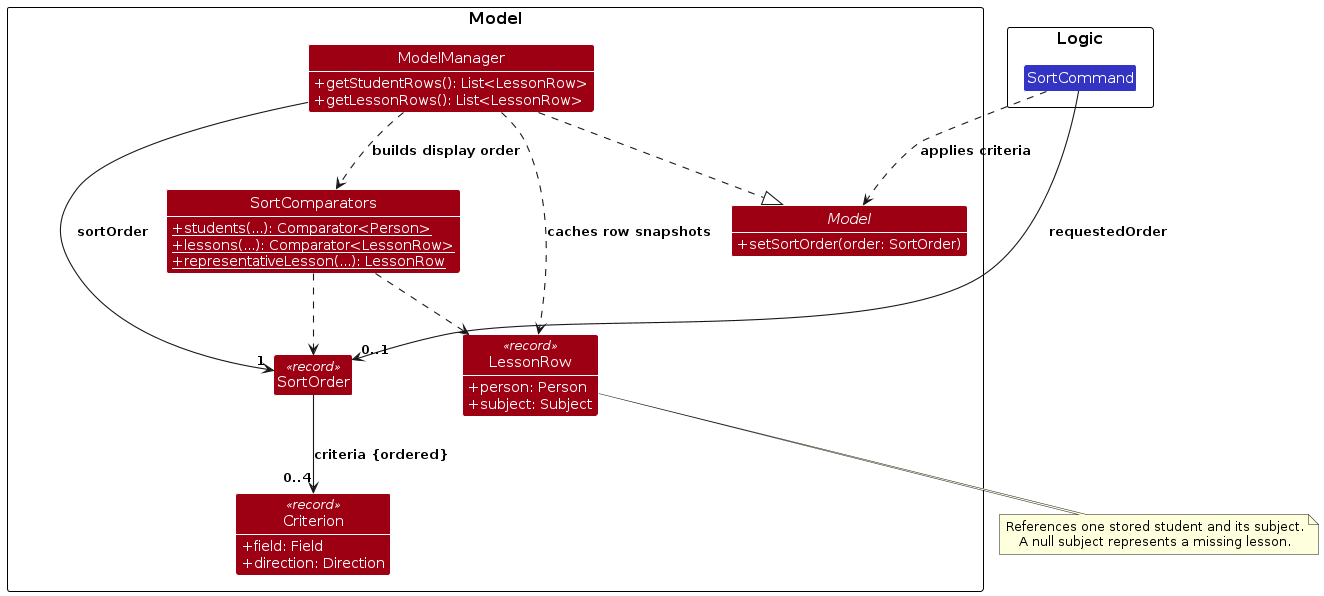
The diagram shows the sorting types and their main dependencies; UI, storage and comparator parameter lists are omitted for readability.
SortOrder is an immutable, ordered list of field/direction pairs. Its first criterion has the highest
priority. Fields cannot repeat, and an empty order represents the original stored order. The supported
fields are student name, outstanding amount, start date, and upcoming lesson slot. A lesson slot is a
combined day/time criterion; each lesson row associates that schedule with its subject.
SortOrderParser validates criteria arguments such as o/desc n/asc or slot/asc, preserving their order
and independent directions. It rejects malformed arguments, unknown fields, repeated fields, and directions
other than lowercase asc or desc. The criteria model and parser do not mutate profiles or user preferences.
SortCommandParser handles the current-order query and reset, and the registered SortCommand applies
criteria to the session's ModelManager. Saving and restoring the order is described in Restoring the last view.
SortCommand overrides Command#requiresAddressBookSave() so LogicManager does not write profile JSON
for apply, reset or query. A storage permission error therefore cannot make session-only sorting fail.
Other commands keep their existing save behaviour; preference persistence remains separate.
SortComparators compares names without regard to case, amounts numerically, and start dates as annual
month/day values. Invalid existing dates and absent lessons stay last in both directions. LessonRow
references a profile and one of its subjects without duplicating stored data. Upcoming lesson comparisons
use one captured local date/time: a start equal to that time is due now, while a start that has already
passed is compared using its next weekly occurrence. representativeLesson() selects the minimum row under
the requested comparison: nearest for ascending slots and furthest for descending slots. Student-level
criteria are constant within one profile, so the slot direction selects its representative even in a mixed
order. Equal slots retain subject insertion order; subjectless profiles use a null subject.
ModelManager exposes a SortedList over the existing filtered students. The stored address-book list is
not reordered, and complete ties keep the stored order. This sorted list supplies the displayed index used by
View, Edit and Delete. getStudentRows() gives one representative lesson per student in the same order, which
LessonListPanel shows when sorting by slot/. Counts and indexed commands still refer to unique students.
Upcoming lessons use the computer's local time zone. Lesson slots are weekly local times, not events in a
particular time zone. Each command compares all lessons against one reference time, so a command run just as
a lesson starts cannot order the list using two different times. No timer reorders rows while a tutor is
typing an indexed command; running sort or list again refreshes the upcoming lessons.
Design considerations
| Decision | Reason |
|---|---|
SortedList over the filtered students | Changes display order while retaining stored/CSV order and the existing unique-student command indexes. Reordering the address book would mix presentation with data changes. |
| One captured local reference per command | Keeps comparisons consistent at lesson boundaries. Reading the clock inside each comparison could change keys while sorting. |
| One representative row per ungrouped student | Keeps natural indexes and whole-profile commands simple. Subject groups retain every lesson because each subject has its own schedule. |
Sorting within subject groups
SubjectGrouping keeps alphabetical subject headings and the printed index of each unique student.
When a sort is active, it maps the already ordered ModelManager#getLessonRows() to positions and uses
those positions to order entries within each group. This API still includes every lesson; it does not
collapse to representatives. Comparisons use the same reference time and criterion rules as the ungrouped
display, but each grouped card retains its own subject and slot. Complete lesson ties explicitly fall back
to stored student positions, independently of representative ordering. A student can appear under several
subjects with the same printed student index; deleting that index removes their whole profile and all lessons.
Without active criteria, grouping retains its original alphabetical student order. Subjectless students
remain part of the unique-student list and counts, but do not produce subject groups.
CommandResult.ListPresentation.REFRESH requests rebuilding the current presentation without selecting
contacts or subject groups. Applying/resetting Sort uses this request; a bare Sort query uses UNCHANGED.
MainWindow remembers the current grouped presentation and rebuilds the appropriate panel after an apply
or reset. View, Help, Export, a bare Sort query and the delete and clear previews preserve the existing panel
and its scroll position.
Find, other List options and successful profile mutations select the ungrouped presentation, as before.
The active sorting criteria remain available through Logic/Model, which is how the last sort is saved (see Restoring the last view).
Weekly subject lessons
Subject contains its validated display name and one required LessonSlot. LessonSlot contains a
DayOfWeek and LocalTime, which prevents incomplete subjects inside the model. Add and Edit accept one
ordered s/SUBJECT day/DAY time/TIME triplet per subject. ParserUtil validates the triplet counts and
order, accepts the documented three-letter day names, requires strict 24-hour HH:mm times, and rejects
duplicate subject names case-insensitively. List filters continue to compare only the subject name so that
list s/Maths works regardless of when each student's Maths lesson begins.
Combining subject and tag filters
ListCommandParser tokenizes both s/ and t/ prefixes together, accepting either category order
and interleaved repeated values. It reuses ParserUtil validation and PersonHasAnyTagPredicate.
ListCommand combines its subject-name match with the supplied tag predicate using AND, then applies
active-student visibility. Each category uses OR internally; an omitted category adds no restriction.
The command updates the existing filtered list, so students appear once and the current sort order
and displayed indexes still apply. Archived-only and subject-grouped modes remain standalone.
ListCommandParser recognises one standalone -summary before, between, or after filter arguments.
It removes only the flag before delegating subject/tag values to the existing validators.
The flag must precede another prefix/summary flag or end the input, so a hyphenated value such as
t/Pre-summary and text inside a multiword value such as t/Needs -summary revision are preserved.
Repeated summary flags and combinations with the standalone -archived or -subjects modes are rejected.
Subject.normalizeName() trims boundary whitespace and collapses runs of ordinary ASCII spaces before
validation and construction; the 1–50 character limit applies to the normalized name. It preserves case
and the lesson slot, and does not permit internal tabs or line breaks. ParserUtil.parseSubjectName()
reuses this rule for Add, Edit, List and CSV import. Equality, hashing, name matching and UI grouping
therefore use consistent names. Each student's subject names remain unique, ignoring case, even when
their lesson slots differ. Different students can share a subject heading while retaining their own slots.
JSON adapters construct the same normalized Subject model. Reading legacy spaced names does not
rewrite the file; subsequent saves serialize canonical names. If legacy entries for one student collide
after normalization, JsonAdaptedPerson rejects the record with IllegalValueException, translated by
storage into DataLoadingException. Loading fails rather than silently losing a lesson. This is an
upgrade constraint: back up and resolve colliding entries before using the file.
Shared tag data
Tags are optional descriptive labels, separate from subjects. Add accepts repeated t/TAG values
using ParserUtil.parseTags(). This validates every occurrence before adding the profile, combines
repeated tags, and produces an empty set when no tags are supplied. The shared contract is:
Tagaccepts ASCII letters, digits, spaces, and hyphens, and rejects blank values. It trims surrounding whitespace and stores lowercase text usingLocale.ROOT. Internal spaces are preserved.Person.getTags()returns an immutable set. Repeated tags and case variants collapse into one value; order has no meaning.Person.isSamePerson()compares name, phone, address and start date. Name and address ignore letter case and repeated spaces, and the start date ignores the case of the month, soamy beewith10-augis the same student asAmy Beewith10-Aug. The stored spelling is kept as typed. Outstanding amount, tags, notes, subjects and archive state do not distinguish identity.UniquePersonList, Add, Edit and Import share this rule. Paid and Charge change only the balance and cannot create an identity collision. Full names alone need not be unique: different phone, address or start date distinguishes students.Person.equals()andhashCode()include tags, so changes to stored data remain detectable even when the student identity stays the same.- JSON stores a
tagsarray of normalized strings in alphabetical order. A missing or null array loads as an empty set, preserving compatibility with the previous student-profile schema. Invalid or null elements reject the stored profile. For example:"tags": ["a-level", "needs revision"]. - Edit replaces the whole tag set when
t/is supplied and keeps the existing tags otherwise. A single blankt/clears all tags.list t/TAGfilters withPersonHasAnyTagPredicate, which reuses the same normalization, sot/A-Levelmatches the storeda-level. view INDEXshows the stored lowercase tags. No tag length or count limit is enforced.
Student name validation
Names must start with a Unicode letter and may contain Unicode letters, combining marks, ordinary spaces, hyphens (-), and straight or curly apostrophes (', ’). Examples: Anne-Marie, O'Connor, O’Connor, José (including a combining accent), and 张伟. Digits, control characters, and other punctuation are rejected. Spelling is preserved; surrounding whitespace is trimmed by Add, Edit, and CSV import.
Name.isValidName is shared by ParserUtil.parseName (Add, Edit and CSV import) and
JsonAdaptedPerson (JSON loading). No Unicode normalization is applied. Duplicate equality
continues to compare the supplied spelling; Find continues to match case-insensitive word
prefixes split on whitespace, without transliteration or accent folding. Name sorting keeps
its existing case-insensitive lexical comparison rather than locale collation.
CSV import
import FILE_PATH [confirm] reads the CSV format written by export, so a file exported from one copy of
TuteeDex can be imported into another. The work is split into three small classes:
CsvReader(incommons.util) turns the text into rows of fields. It followsCsvExporter's quoting rules, ignores the byte order mark that Excel adds, accepts LF and CRLF, and keeps line breaks inside quoted fields. Blank lines are kept as blank rows so that row numbers in error messages match what a spreadsheet shows.CsvPersonParser(inlogic.parser) turns one row into aPerson. It reuses theParserUtilmethods used byadd, so imported values follow exactly the same rules and produce the same error messages. BecauseSubjectholds aLessonSlot, a subject cell such asMaths (Mon 09:00); Physics (Tue 10:00)is split on semicolons and each part is parsed into a name, a day and a start time, matchingSubject#toString(), which the export uses.ImportCommandchecks the header againstCsvExporter.HEADER, parses every row, and collects all problems before changing anything.
Duplicates. The model already rejects two students with the same identity (Person#isSamePerson()). A row
that is equal in every field to a stored student, or to an earlier row, is skipped, which makes importing the same
file twice harmless. A row with the same identity but different details is an error, because adding it would break
the uniqueness rule and silently keeping either version could lose data.
The activity diagram below shows what one import command does. Running it without confirm is the preview;
the tutor confirms by running it again with confirm, or cancels by doing nothing.
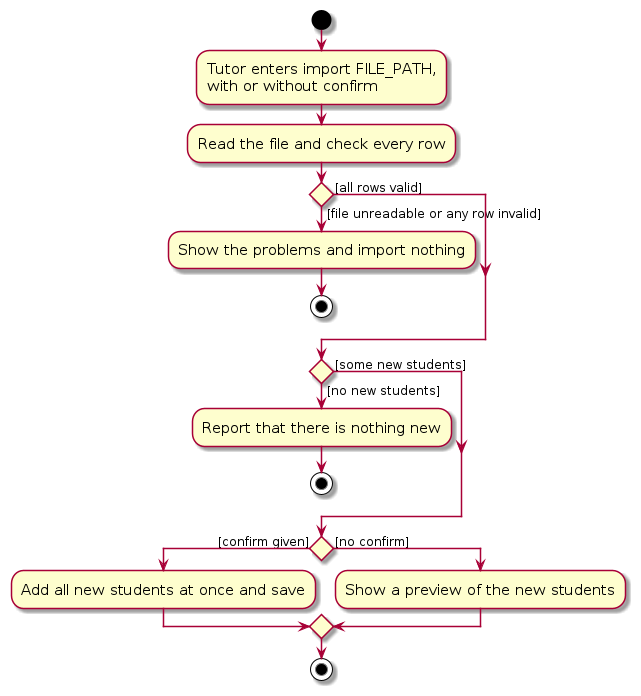
All or nothing. Without confirm, the command only returns a preview. With confirm, it copies the current
AddressBook, adds every new student to the copy and then calls Model#setAddressBook() once. Existing students
are kept, and if any row is invalid the command throws before the copy is made, so the stored data never ends up
half imported. The filter is then reset to active students so the new students are visible.
Data sandbox. We chose to let import read only files inside the folder TuteeDex runs from, so that a
mistyped or unexpected path cannot make the app read unrelated files on the computer. ImportCommand resolves the path against the folder TuteeDex runs from, the same folder export writes to,
and rejects any path that ends up outside it, including .. steps and links that lead out of the folder.
Alternatives considered. Keeping the preview in memory and confirming it with a separate command would avoid
reading the file twice, but it adds state that can go stale if the file or the address book changes in between.
Reading and checking the file again on confirm is simpler and always uses the current data.
Restoring the last view
When TuteeDex opens, it shows the same list the user was looking at when they closed it, in the same order,
such as the subject groups from list -subjects sorted by sort o/desc.
What is saved. UserPrefs has two strings. lastViewCommand is the list or find command that last decided
which students are shown, and lastSortCommand is the sort command that last set the order. An empty string
means the normal list or the default order. Both are saved with the GUI settings in preferences.json, because
they are preferences about the display rather than student data.
When it changes. After each successful command, LogicManager#execute() calls saveLastView():
- A
SortCommandthat applies criteria saves its own command text, andsort resetclears the saved order. A baresortonly reports the order (its result isListPresentation.UNCHANGED), so nothing changes. Sorting keeps the current presentation, so it never changes the saved view. - A
ListCommandorFindCommandsaves its own command text. - A command whose result has
ListPresentation.UNCHANGED(view,help,export, and thedeleteandclearpreviews), or that exits the app, keeps the saved view, because the display does not change. - Any other command clears the saved view only if it changed what is on screen.
LogicManager#execute()readsModel#getFilteredPersonListPredicate()before the command runs, andsaveLastView()compares it with the filter afterwards. Commands that reset the filter, such asadd,archiveandimport, clear the saved view.deleteandeditkeep the filter, so the saved view is kept. The saved view is also cleared when the subject groups are replaced by the contact list, whichLogicManagertracks from each result'sListPresentation. The saved order stays, because sorting carries over to the normal list.
A command that fails throws before saveLastView() runs, so it never changes the saved view. MainApp#stop()
already writes UserPrefs to disk when the app closes, so no new storage code is needed.
Restoring. At the end of MainWindow#fillInnerParts(), restoreLastView() runs the saved sort command and
then the saved view command through the normal executeCommand() path, so the list, the subject groups and the
result box are updated in the same way as when the user types the commands. The sort runs first so that the view
is built in the saved order. The preferences file can be edited by hand, so LogicManager#getLastSortCommand()
and LogicManager#getLastViewCommand() parse the saved text and return it only if it is a sort command, or a
list or find command. Anything else, such as delete 1, is logged and ignored.
A restored find can show no students, for example after its only match was deleted, so restoreLastView() puts
MainWindow.MESSAGE_LAST_VIEW_RESTORED before the find result. A restored list shows the student counts instead
of the result box, so it needs no message.
Like sort, list and find override Command#requiresAddressBookSave() to return false, because they
only change the display. Otherwise, if the data file failed to load and the app started empty, replaying the
saved view would write that empty address book over the user's file. help, view, export, exit, and the
delete, clear and import previews do the same, because they change no students either.
Alternatives considered. Saving the filter itself is not practical, because the filters are Predicate
objects built from lambdas and cannot be written to JSON without a separate data form for every kind of filter.
Saving the command text reuses the existing parsers, so new list options are restored without extra code.
Making delete reset the filter would also keep the saved view and the screen in step, but the index numbers on
screen would change after every deletion, so a following delete 2 could remove a different student.
Archiving students
Person has an archived flag, which is saved in the JSON file and in the CSV export. Records without the flag
load as active. archive INDEX and unarchive INDEX pick the student from the currently displayed list, like
delete, and replace the profile with Person#withArchived() through Model#setPerson(). Archiving an already
archived student, or unarchiving an active one, is rejected with a CommandException.
Model.PREDICATE_SHOW_ACTIVE_PERSONS hides archived students. Plain list, the subject and tag filters, find,
list -subjects and the TOTAL/PAID counts all apply it, and add, archive and unarchive reset the
filter to it. Edit keeps the current filter. Only list -archived shows the archived students instead.
Alternatives considered. Moving archived students to a second list in AddressBook would keep them out of
every filter automatically, but edit, export, import and duplicate checks would then have to look in two
places. A flag on Person keeps one list and one duplicate check.
Keeping the view after an edit
Edits keep the existing predicate and sort order. ModelManager#setPerson() updates the filtered and sorted
lists and invalidates rendered rows; no index snapshot is retained. An edited student can disappear from the
filter or move after a sort-key change. Edit feedback warns when that student's displayed index changes.
Archived edits keep the archived filter and archive flag. Successful edits from subject groups still switch
to contacts and clear the saved grouped presentation, as other contact-changing commands do.
Confirming a deletion
DeleteCommand previews with ListPresentation.UNCHANGED and does not require a save.
After a successful preview, LogicManager holds a confirmation bound to the exact immutable Person.
Only an immediately following delete confirm uses it. Every command attempt clears the pending
confirmation before parsing, so filter/sort changes, malformed input, and failures cancel it.
Pending confirmations exist only in memory. Confirmed deletion uses the normal save path;
LogicManager restores the address book snapshot on a save error, as for every saving command, and
updates the saved view only on success.
Binding the confirmation to the Person rather than to the index means a list that changed in between
cannot make delete confirm remove a different student. The flow is shown in the Logic component.
Alternatives considered. A delete INDEX confirm form in one command would be shorter, but it would let a
mistyped index delete the wrong student without the tutor seeing who it is. clear keeps its own one-command
clear confirm, because it does not depend on an index.
Balance commands
The paid and charge commands use the index from the currently displayed student list. Their parsers validate
the index and amount before creating a command. paid INDEX replaces the balance with zero, while
paid INDEX AMOUNT subtracts a positive amount. charge INDEX AMOUNT adds a positive amount. Amount arithmetic
is performed by the immutable OutstandingAmount value object, so balances remain nonnegative and limited to two
decimal places. Payments greater than the current balance are rejected with a command error before the profile
is modified.
ParserUtil#parseOutstandingAmount() rejects any entered amount above OutstandingAmount.MAXIMUM
(SGD 1,000,000.00), and ChargeCommand rejects a charge whose result would go above it. The limit is checked only
on input, not when loading the data file, so a file with a larger balance from an older version still loads.
BalanceCommandParser checks the format of a payment or charge amount itself, so its error talks about the amount
rather than the stored balance.
Documentation, logging, testing, dev-ops
Appendix: Requirements
Product scope
Target user profile:
- is a private tutor who teaches multiple students one-on-one
- needs to keep track of student contact details, weekly lesson slots, and fee payments
- juggles many students at once and needs an easy way to avoid losing track of details
- prefers desktop apps over other types of applications
- is reasonably comfortable using CLI apps
Value proposition: Organizes the chaos that comes with tutoring many students privately. Track each student's contact details, lesson schedule, and fee payments in one place, so private tutors spend less time on admin and less time chasing missed payments.
User stories
Priorities: High (must have) - * * *, Medium (nice to have) - * *, Low (unlikely to have) - *
| Priority | As a … | I want to … | So that I can… |
|---|---|---|---|
* * * | new user | see usage instructions | refer to instructions when I forget how to use the App |
* * * | private tutor | add a student | keep track of the students I teach |
* * * | private tutor | view a list of all my students | see all my students in one place |
* * * | private tutor | view a student's profile | quickly access the student's information |
* * * | private tutor | edit a student's details | keep my records accurate when information changes |
* * * | private tutor | delete a student | remove records that are no longer needed |
* * * | private tutor | see which students still owe me money | follow up on unpaid fees in a timely manner |
* * * | private tutor | search for a student by name | quickly find a student profile without scrolling |
* * * | private tutor | view the current outstanding balance on a student's profile | know exactly how much they owe me |
* * * | private tutor | record each student's subjects with a weekly lesson day and time | know when I teach each student |
* * | private tutor | record a student's address | know where they live, to travel to their home and give lessons / chase money |
* * | private tutor | import students from a file exported by TuteeDex | move my students to another computer without typing them in again |
* * | private tutor | have TuteeDex open on the list I was last using | continue where I left off without typing the same list, find or sort again |
* * | private tutor | list students by subject | prepare for lessons of one subject at a time |
* * | private tutor | group students under their subjects | see who I teach for each subject at a glance |
* * | private tutor | tag students, such as needs revision, and list them by tag | focus on students who need the same kind of attention |
* * | private tutor | add a note to a student | remember things about the student that do not fit other fields |
* * | private tutor | sort students by name, balance, start date or next lesson | put the most urgent students first |
* * | private tutor | record payments and new charges | keep each student's outstanding balance up to date |
* * | private tutor | archive a student who has stopped lessons | hide them from my active list without losing their records |
* * | private tutor | export my students to a CSV file | keep a copy of my records outside the app |
* | private tutor | clear all students after a confirmation | start over without deleting the data file by hand |
Use cases
(For all use cases below, the System is TuteeDex and the Actor is the private tutor.)
Use case: UC01 - Add a student profile
MSS
Tutor requests to add a student profile with the student's details.
TuteeDex validates the supplied details.
TuteeDex saves the profile and confirms that it was added.
Use case ends.
Extensions
2a. One or more supplied details are invalid or missing.
2a1. TuteeDex shows the relevant error and does not add the profile.
Use case resumes at step 1.
2b. A profile with the same identity (name, phone, address and start date) already exists.
2b1. TuteeDex rejects the duplicate and does not add the profile.
Use case ends.
Use case: UC02 - Locate and view a student profile
MSS
Tutor requests to list all students or search for a student by name.
TuteeDex displays the matching students with their indexes, names and subjects.
Tutor requests to view one student using the index shown in the displayed list.
TuteeDex displays the student's full profile, including contact, subject, fee, tag and note details.
Use case ends.
Extensions
2a. No students match the search, or the list is empty.
2a1. TuteeDex informs the tutor that there are no matching students.
Use case ends.
3a. The selected index is invalid or outside the displayed list.
3a1. TuteeDex shows an error and does not display a profile.
Use case resumes at step 2.
Use case: UC03 - Update a student profile
MSS
Tutor searches for a student by name.
TuteeDex displays matching students.
Tutor selects a student using the index shown in the displayed list and supplies the details to update.
TuteeDex validates the supplied details and applies the changes while preserving fields the tutor did not specify.
TuteeDex saves the changes and confirms the update. The displayed list keeps its current search and order.
Use case ends.
Extensions
3a. The tutor supplies no details to update.
3a1. TuteeDex shows an error and leaves the profile unchanged.
Use case resumes at step 2.
4a. The index or one or more supplied details are invalid.
4a1. TuteeDex shows the relevant error and leaves the profile unchanged.
Use case resumes at step 2.
4b. The updated profile would have the same identity as another student.
4b1. TuteeDex rejects the update as a duplicate and leaves the profile unchanged.
Use case resumes at step 2.
4c. The supplied details are the same as the stored details.
4c1. TuteeDex informs the tutor that no changes were made.
Use case ends.
5a. The updated student no longer matches the current search, or moves because of the current sort order.
5a1. TuteeDex warns the tutor that the displayed indexes have changed.
Use case ends.
Use case: UC04 - Delete a student profile
MSS
Tutor requests to list all students or search for a student by name.
TuteeDex displays the matching students.
Tutor requests to delete a student using the index shown in the displayed list.
TuteeDex previews the selected student's details without changing or saving data.
Tutor confirms the deletion as the next command.
TuteeDex deletes exactly the previewed profile and saves the change.
Use case ends.
Extensions
2a. No students match the search, or the list is empty.
2a1. TuteeDex informs the tutor that there are no matching students.
Use case ends.
3a. The selected index is invalid or outside the displayed list.
3a1. TuteeDex shows an error and leaves all profiles unchanged.
Use case resumes at step 2.
5a. Tutor enters any other command instead.
5a1. TuteeDex cancels the pending deletion and runs the other command.
Use case ends.
6a. Saving fails.
6a1. TuteeDex restores the profile and shows an error.
Use case ends.
Use case: UC05 - Record a payment or a new charge
MSS
Tutor requests to list or search for students.
TuteeDex displays the matching students.
Tutor records a payment, or a charge for new lessons, for a student using the index shown in the displayed list.
TuteeDex updates the student's outstanding balance, saves it and shows the new balance.
Use case ends.
Extensions
3a. The index is invalid, or the amount is not a positive amount with at most two decimal places.
3a1. TuteeDex shows an error and leaves the balance unchanged.
Use case resumes at step 2.
3b. The payment is larger than the outstanding balance, or the charge would take the balance above SGD 1,000,000.00.
3b1. TuteeDex rejects the amount and leaves the balance unchanged.
Use case resumes at step 2.
3c. Tutor records a payment without an amount.
3c1. TuteeDex treats it as payment of the full outstanding balance.
Use case resumes at step 4.
Use case: UC06 - Archive a student who has stopped lessons
MSS
Tutor requests to list students.
TuteeDex displays the active students.
Tutor requests to archive a student using the index shown in the displayed list.
TuteeDex marks the student as archived, saves it and removes the student from the active list.
Use case ends.
Extensions
3a. The index is invalid or the student is already archived.
3a1. TuteeDex shows an error and leaves the student unchanged.
Use case resumes at step 2.
Use case: UC07 - Unarchive a student who resumes lessons
MSS
Tutor requests to list archived students.
TuteeDex displays the archived students.
Tutor requests to unarchive a student using the index shown in the displayed list.
TuteeDex marks the student as active, saves it and shows the student in the active list again.
Use case ends.
Extensions
2a. There are no archived students.
2a1. TuteeDex informs the tutor that there are no archived students.
Use case ends.
3a. The index is invalid or the student is already active.
3a1. TuteeDex shows an error and leaves the student unchanged.
Use case resumes at step 2.
Use case: UC08 - Restore students from an exported file
Preconditions: The tutor has a CSV file exported by TuteeDex in the folder TuteeDex runs from.
MSS
Tutor requests to import the file.
TuteeDex checks every row and previews the students that would be added, without changing any data.
Tutor confirms the import.
TuteeDex adds all new students together, saves them and reports how many were imported.
Use case ends.
Extensions
1a. The file is missing, is not a CSV file, or is outside the folder TuteeDex runs from.
1a1. TuteeDex shows an error and imports nothing.
Use case ends.
2a. One or more rows are invalid, or conflict with a stored student.
2a1. TuteeDex lists the problem rows and imports nothing.
Use case ends.
2b. Every student in the file is already in TuteeDex.
2b1. TuteeDex reports that there is nothing new to import.
Use case ends.
3a. Tutor does not confirm the import.
3a1. TuteeDex imports nothing.
Use case ends.
Non-Functional Requirements
- Platform compatibility: TuteeDex should work on Windows, macOS, and Linux.
- Java version: TuteeDex should run on a computer with Java 25 installed.
- Command-based usability: A tutor who types at least 40 words per minute should be able to add a student with one subject, or record a payment, in under 30 seconds using a single command.
- Screen-size usability: The GUI should work well at resolutions of 1920 x 1080 or higher with 100% or 125% display scaling. It should remain usable at resolutions of 1280 x 720 or higher with 150% scaling.
- Single-user operation: TuteeDex should support one private tutor using their own local data. It should not depend on shared data files or a multi-user service.
- Local, editable storage: Student data should be stored locally in a human-editable text file and remain available after the application is restarted.
- Standalone distribution: TuteeDex should work without an installer or a team-operated remote server. Its deliverable should be packaged as one JAR file no larger than 100 MB.
- Performance: With up to 1000 students, each command should show its result within 1 second on a typical laptop.
- Offline use: All features should work without an internet connection.
Glossary
- CLI (Command Line Interface): A way of using an app by typing text commands, such as
list, instead of clicking. - CSV (Comma-Separated Values): A plain-text table format, one row per line with fields separated by commas, that spreadsheet apps can open.
exportwrites one andimportreads one. - GUI (Graphical User Interface): The window, list and buttons that TuteeDex shows on screen.
- MSS (Main Success Scenario): The steps of a use case when everything goes as expected.
- Private tutor: The single user who uses TuteeDex to manage students they teach.
- Start date: The day and month a student started tuition, in
DD-MMMformat such as19-Sep. It is part of a student's identity and can be used for sorting. - TOTAL/PAID banner: The summary shown in the result box at startup and after a successful
listcommand. TOTAL is the number of students in the displayed list, and PAID is how many of them have an outstanding balance of SGD 0.00. - Student (tutee): A learner whose tutoring and contact information is recorded in TuteeDex.
- Student profile: A record for one student. It contains the student's name, address, phone number, tuition start date, subjects with weekly lesson slots, outstanding balance, tags, notes, and archive status.
- Outstanding balance: The amount, in Singapore dollars (SGD), that remains owed for a student's tuition. The amount cannot be negative. It represents the current balance, not a history of individual payments.
- Lesson slot: The weekly day and start time of one subject's lesson, such as Monday 15:30.
- Subject group: The students who take one subject, shown together by
list -subjects. - Tag: A short label on a student, such as
needs revision, used to find and filter students. Tags are separate from subjects. - Sort criterion: A field and direction used to order the displayed list, such as
o/descfor largest balance first. - Archived student: A student hidden from the active list without being deleted.
list -archivedshows them, andunarchivemakes them active again. - Displayed index: The one-based number shown beside a student in the current displayed list. After a search, the index refers to that search result list.
- Duplicate profile: A profile with the same name, phone, address and start date as an existing profile, ignoring letter case and extra spaces. TuteeDex rejects it even if outstanding amount, subjects, tags, notes or archive status differ; two profiles may share a name if the phone, address or start date differs.
Appendix: Instructions for manual testing
Given below are instructions to test the app manually.
Note: These instructions only provide a starting point for testers to work on; testers are expected to do more exploratory testing.
Launch and shutdown
Initial launch
Download the JAR file and copy it into an empty folder.
Open a terminal in that folder and run
java -jar "TuteeDex.jar".
Expected: The GUI opens with a set of sample students. The window size may not be optimal.
Saving window preferences
Resize the window to an optimal size. Move the window to a different location. Close the window.
Relaunch the app with the same command.
Expected: The most recent window size and location are retained.
Adding a student
Use a fresh copy of the app in an empty folder, and run clear confirm first.
- Run
add n/Amy Bee a/Block 1 p/11111111 d/10-Aug s/Maths day/MON time/09:00, thenview 1.
Expected:Amy Bee's profile has been added to TuteeDex!. View showsOutstanding amount: SGD 0.00, becauseo/was omitted. - Run
add n/amy bee a/block 1 p/11111111 d/10-aug s/Physics day/TUE time/10:00 o/5.
Expected:This contact already exists in TuteeDex. Letter case and extra spaces do not make a new student. - Run
add n/Bob Choo a/Block 2 p/22222222 d/19-Sep s/Physics day/TUE time/10:00 o/abc.
Expected: An outstanding-amount error. No student is added. - Run
add n/Bob Choo a/Block 2 p/22222222 d/19-Sep s/Physics day/TUE time/10:00 x/what.
Expected: An invalid command format error with theaddusage. No student is added.
Finding students
Use the test copy above, and add
add n/Bob Choo a/Block 2 p/22222222 d/19-Sep s/Physics day/TUE time/10:00 o/120.50 and
add n/Cara Dee a/Block 3 p/33333333 d/20-Oct s/Maths day/WED time/11:00.
- Run
find bo.
Expected:Found 1 contact.and only Bob is listed. A keyword matches the start of any word in a name, ignoring case. - Run
find am cara.
Expected:Found 2 contacts.Amy and Cara are listed, because a student matches if any keyword matches. - Run
find ee.
Expected:No contacts match the specified name keywords.The middle or end of a word does not match. - Run
list,archive 3, thenfind Cara.
Expected: No students are listed, because Find leaves out archived students. Runlist -archivedandunarchive 1to restore Cara.
Viewing a student
Using the students above:
- Run
list, thenview 2.
Expected: Bob's full profile, includingOutstanding amount: SGD 120.50andSubjects: Physics (Tue 10:00). The list does not change. - Run
view 0, thenview 9.
Expected: The first shows an invalid command format error, and the second says no student is at that index.
Deleting a student
Deleting a student while all active students are being shown
Prerequisites: List all active students using the
listcommand, with multiple students in the list.Test case:
delete 1
Expected: The first student's details and a confirmation prompt appear. The list and data file are unchanged.Test case:
delete confirmimmediately after the preview
Expected: Only the previewed student is deleted. Restart and check that the deletion persisted.Test case:
delete 1, thensort n/desc, thendelete confirm
Expected: Confirmation is rejected; no student is deleted. Repeat withfind,list -archived,list, an invalid command, ordelete 1 confirmbetween preview and confirmation.Test case: Preview and confirm from a filtered, sorted, or archived list
Expected: The preview identifies the student at the displayed index; confirmation deletes only that student. Restart after a preview alone and trydelete confirm: it is rejected.Test case: Make the data path unwritable after a preview, then
delete confirm
Expected: A save error appears and the student remains. Restore write access, preview and confirm again; restart and check that only that student was deleted.Test case:
delete 0
Expected: No student is deleted. The result box shows error details.Other incorrect delete commands to try:
delete,delete x,...(where x is larger than the list size)
Expected: Similar to previous.
Listing students by tags
Use a fresh copy of the app in an empty folder so these checks do not affect real student records.
- Run
clear confirmin this test copy, then add three profiles:add n/Amy Bee a/Block 1 p/11111111 d/10-Aug s/Maths day/MON time/09:00 t/A-Level,add n/Bob Choo a/Block 2 p/22222222 d/19-Sep s/Physics day/TUE time/10:00 t/Needs revision, andadd n/Cara Dee a/Block 3 p/33333333 d/20-Oct s/Maths day/WED time/11:00. - Run
find Nobody, thenlist t/A-Level t/Needs revision.
Expected: Amy and Bob are displayed in that order, with TOTAL 2 / PAID 2. This checks OR matching across the full address book, including students hidden by Find. - Run
list t/NEEDS REVISION t/needs revision, thenview 1.
Expected: List displays only Bob, with TOTAL 1 / PAID 1. View then replaces the banner with Bob's details. The repeated case variants do not duplicate Bob in the results, and the displayed index is used. - Run
list t/revision.
Expected: An empty list with TOTAL 0 / PAID 0. A substring is not a complete tag match. - Run
list.
Expected: Amy, Bob, and untagged Cara return, with TOTAL 3 / PAID 3. - Run
find Bob, then trylist t/,list t/A-Level t/,list t/A-Level x/value, andlist T/A-Level.
Expected: Each command reports an error. Only Bob remains displayed, and no profile fields change. - Exit and restart from the same folder, then run
list t/A-Levelandlist.
Expected: Amy still matches the tag filter, and all three original profiles remain stored. - Compare
list,list -summary,list t/A-Level, andlist -summary t/A-Level.
Expected: The first two show the same three students and TOTAL 3 / PAID 3. The last two show only Amy and TOTAL 1 / PAID 1. Adding the optional flag does not change the visible result.
Summary flag ordering
Using the profiles above:
- Compare
list -summary s/Maths,list s/Maths -summary, andlist s/Maths -summary s/Maths.
Expected: Amy and Cara are displayed, with identical TOTAL/PAID counts for all three commands. - Compare
list -summary t/A-Level t/Needs revision,list t/A-Level -summary t/Needs revision, andlist t/A-Level t/Needs revision -summary.
Expected: Amy and Bob are displayed, with identical TOTAL/PAID counts for all three commands. - Run
find Bob, then trylist t/A-Level -summary -summary,list t/ -summary,list -subjects -summary, andlist -archived -summary.
Expected: Each command fails; Bob remains the displayed student and stored profiles are unchanged.
Combining subject and tag filters
Use the three profiles from the preceding tag-list test in a disposable test copy.
- Run
find Nobody, thenlist s/Maths s/Physics t/A-Level t/Needs revision.
Expected: Amy and Bob appear once each; the GUI banner shows TOTAL 2 / PAID 2. Untagged Cara does not match both categories. - Run
list t/Needs revision s/Maths s/Physics.
Expected: Only Bob appears. Prefix order does not change the matching rule. - Run
list -summary s/Maths t/Needs revision.
Expected: An empty list with TOTAL 0 / PAID 0. Cara and Amy have Maths but neither has the required tag. - Run
sort n/desc, thenlist s/Maths s/Physics t/A-Level t/Needs revision, andview 1.
Expected: Bob appears before Amy, and View shows Bob. Listing retains the current sort order. - Try
list s/Maths t/,list t/A-Level s/,list -archived s/Maths t/A-Level, andlist -subjects t/A-Level s/Maths.
Expected: Each fails without changing the displayed students, sort order, or stored profiles.
Listing and grouping by subject
Use a fresh copy of the app in an empty folder. Run clear confirm, then
add n/Amy Bee a/Block 1 p/11111111 d/10-Aug s/Maths day/MON time/09:00,
add n/Bob Choo a/Block 2 p/22222222 d/19-Sep s/Physics day/TUE time/10:00 and
add n/Cara Dee a/Block 3 p/33333333 d/20-Oct s/Maths day/WED time/11:00 s/Physics day/FRI time/16:00.
- Run
list s/maths.
Expected: Amy and Cara are listed, with TOTAL 2 / PAID 2. Subject names ignore case. - Run
list s/Chemistry.
Expected: An empty list with TOTAL 0 / PAID 0. - Run
list -subjects.
Expected: A Maths heading with Amy and Cara, and a Physics heading with Bob and Cara. Cara keeps the same index under both headings. TOTAL is 3, because each student is counted once. - Run
list -subjects x.
Expected: An invalid command format error, and the subject groups stay on screen.
Listing archived students
Use a fresh test copy of the JAR in an empty writable folder.
- Run
clear confirm, thenadd n/Amy Bee a/Block 1 p/11111111 d/10-Aug s/Maths day/MON time/09:00 t/A-Levelandadd n/Bob Choo a/Block 2 p/22222222 d/19-Sep s/Physics day/TUE time/10:00 o/120.50. Archive Bob witharchive 2. - Run
find Nobody, thenlist -archived.
Expected: only Bob appears, with TOTAL 1 / PAID 0, because Bob owes SGD 120.50. - Run
view 1.
Expected: Bob's details, not Amy's. - Run
list,list s/Physics, andlist t/A-Level.
Expected: each list excludes archived students.list -summarycounts active students only. - Run
list -archived, then trylist -archived -summaryandlist t/A-Level -archived.
Expected: both invalid combinations fail without changing the archived list or saved profiles. - Restart the app, then run
list -archived.
Expected: the same archived student remains available. Rununarchive 1and repeatlist -archived; expect an empty list with TOTAL 0 / PAID 0.
Editing a student profile
Use a fresh copy of the app in an empty folder so these checks do not affect real student records.
- Run
clear confirmin this test copy to remove sample profiles, then add two test profiles:add n/Amy Bee a/Block 1 p/11111111 d/10-Aug s/Maths day/MON time/09:00 o/20andadd n/Bob Choo a/Block 2 p/22222222 d/19-Sep s/Physics day/TUE time/10:00 o/600. - Run
find Bob, thenedit 1 p/91234567 o/20.50.
Expected:Edited contact: Bob Choo. Only Bob remains displayed, and Bob's name, address, and start date remain unchanged. - Run
view 1.
Expected: Bob's details include phone91234567and outstanding amountSGD 20.50. - Run
find Bob, thenedit 1 o/20.5.
Expected:No changes made to contact: Bob Choo. Only Bob remains displayed. - Run
edit 1 p/87654321 o/-1, thenedit 1 o/.
Expected: Both commands show the outstanding-amount validation error. Bob's details and search results remain unchanged. Tryedit 1 o/20 o/30too; it should show the repeated-field error. - Run
edit 1 n/Amy Bee a/Block 1 p/11111111 d/10-Aug o/20.00.
Expected:This contact already exists in TuteeDex.Bob remains unchanged in the search results. - Run
edit 1 o/0.
Expected:Edited contact: Bob Choo. Only Bob remains displayed, andview 1showsSGD 0.00. - Exit and restart the app from the same folder, then run
view 1.
Expected: Bob's phone is still91234567and outstanding amount is stillSGD 0.00.
Preserving edit context
To check the next indexed action, run clear confirm, then
add n/Zed Test a/Block 9 p/99999999 d/01-Jan s/Maths day/MON time/09:00 o/10 and
add n/Amy Test a/Block 8 p/88888888 d/01-Jan s/Maths day/MON time/09:00 o/10. Run sort n/asc,
find Zed, edit 1 notes/Updated, then charge 1 5. Only Zed should remain visible and owe SGD 15.00;
Amy must still owe SGD 10.00. Run edit 1 n/Yan Test: the search becomes empty and feedback warns
about changed indexes. Restart: the same search and sort should be restored with no matches.
Editing student tags
Use a fresh copy of the app in an empty folder. Inspect saved tags in data/addressbook.json
after successful edits; these checks do not require changes to the profile-card display.
- Run
clear confirm, then addadd n/Amy Bee a/Block 1 p/11111111 d/10-Aug s/Maths day/MON time/09:00 t/Old notes/Keep noteandadd n/Bob Choo a/Block 2 p/22222222 d/19-Sep s/Physics day/TUE time/10:00. - Run
find Amy, thenedit 1 t/A-Level t/Needs revision t/a-level.
Expected:Edited contact: Amy Bee, and only Amy remains displayed. Amy's stored tags area-levelandneeds revision;oldis removed and the repeated tag is combined.view 1still shows subjectMathsand notesKeep note, with all five core fields unchanged. - Run
find Amy, thenedit 1 t/needs revision t/A-LEVEL.
Expected:No changes made to contact: Amy Bee. Only Amy remains displayed. - Try
edit 1 p/87654321 t/A-Level t/andedit 1 T/A-Level.
Expected: Both commands fail, and Amy's phone, tags, and current search results remain unchanged. - Run
edit 1 t/, thenfind Amyandedit 1 t/again.
Expected: The first edit clears Amy's tags and keeps only Amy displayed. The second reports no changes and preserves the search results. Amy's other profile fields remain unchanged. - Exit and restart from the same folder.
Expected: Amy's tags remain empty, and both profiles retain their other details.
Editing student subjects
Use a fresh copy of the app in an empty folder so these checks do not affect real student records.
- Run
clear confirm, then addadd n/Amy Bee a/Block 1 p/11111111 d/10-Aug s/Maths day/MON time/09:00 t/A-Level notes/Amy noteandadd n/Bob Choo a/Block 2 p/22222222 d/19-Sep s/English day/TUE time/10:00 o/600 t/Needs revision notes/Bob note. - Run
find Bob, thenedit 1 s/Physics day/WED time/15:30 s/H2 Chemistry day/FRI time/17:00.
Expected:Edited contact: Bob Choo, and only Bob remains displayed.view 1showsSubjects: Physics (Wed 15:30), H2 Chemistry (Fri 17:00)and notesBob note; the five core fields and tags are preserved. - Run
find Bob, thenedit 1 s/h2 chemistry day/FRI time/17:00 s/physics day/WED time/15:30.
Expected:No changes made to contact: Bob Choo. Only Bob remains displayed.view 1retains the original subject spelling and order from step 2. - Try
edit 1 s/,edit 1 s/Maths day/MON, andedit 1 p/87654321 t/A-Level s/--- day/MON time/09:00.
Expected: Each command fails; Bob's subjects, phone, tags, and current search results remain unchanged. - Run
edit 1 n/Amy Bee a/Block 1 p/11111111 d/10-Aug o/0 s/Physics day/WED time/15:30.
Expected:This contact already exists in TuteeDex.Different subjects, tags, and notes do not bypass duplicate checks. - Run
edit 1 p/87654321, then exit and restart from the same folder.
Expected:view 1shows Bob's updated phone and still lists both scheduled subjects, with his original notes.
Normalizing subject spaces
Use a fresh copy of the app in an empty folder.
- Add
add n/Amy Bee p/11111111 a/Block 1 d/10-Aug s/H2 Maths day/MON time/09:00.
Expected:view 1showsH2 Maths (Mon 09:00). Bothlist s/H2 Mathsandlist s/h2 mathsfind Amy. - Run
edit 1 s/h2 maths day/MON time/09:00.
Expected: No changes are made, and the original capitalization is retained. - Run
edit 1 s/H2 Maths day/MON time/09:00 s/h2 Maths day/TUE time/10:00.
Expected: Duplicate-subject error; Amy's original lesson remains intact. - Add
add n/Bob Choo p/22222222 a/Block 2 d/19-Sep s/h2 maths day/TUE time/10:00, then runlist -subjects.
Expected: One subject heading contains both students with their different slots. Restart and check their profiles; names have single spaces and both schedules are preserved.
Editing student notes
Use a fresh copy of the app in an empty folder so these checks do not affect real student records.
- Run
clear confirm, then addadd n/Amy Bee a/Block 1 p/11111111 d/10-Aug s/Maths day/MON time/09:00 t/A-Level notes/Original noteandadd n/Bob Choo a/Block 2 p/22222222 d/19-Sep s/Physics day/TUE time/10:00. - Run
find Amy, thenedit 1 notes/Revise fractions, graphs & 中文!.
Expected:Edited contact: Amy Bee, and only Amy remains displayed.view 1showsNotes: Revise fractions, graphs & 中文!; all other profile fields are unchanged. - Run
find Amy, then repeatedit 1 notes/Revise fractions, graphs & 中文!.
Expected:No changes made to contact: Amy Bee. Only Amy remains displayed. - Try
edit 1 notes/One notes/Two,edit 1 notes/Replacement p/invalid, andedit 1 notes/Review x/value.
Expected: Each command fails; Amy's saved note, other fields, and search results remain unchanged. - Run
edit 1 notes/Call parent p/87654321.
Expected: Amy's note becomesCall parentand her phone becomes87654321. A recognized prefix starts another field rather than becoming literal note text. - Run
find Amy, thenedit 1 notes/,find Amy, andedit 1 notes/again.
Expected: The first edit clears the note and keeps only Amy displayed. The second reports no changes and preserves the search results. View shows an emptyNotes:value. - Exit and restart from the same folder.
Expected: Amy's note remains empty, her phone is87654321, and her subjects and tags remain unchanged.
Viewing help
- Run
help, or use F1. Expect the command-format window. - Scroll to the last command and hover over a long format such as
add. Expect all commands to be reachable and the full format to appear in a tooltip. - Select the blue
herelink. Expect the online User Guide in the default browser. - Close help with its pixel button, reopen it, then press Escape. Expect only the help window to close each time; the main window stays open.
- Resize help to its minimum size. Expect scrolling and the close button to remain usable.
- Select the matching pixel close button in the main window. Expect the application to exit and retain its window size and position on the next launch.
Header clock and command results
- Compare the header date and time with the computer's local clock. Expect a two-digit day, three-letter English month, and 24-hour time, with two spaces around the hyphen and colon. Leave the app open across a minute boundary; the time should update without a command.
- Run
view 1for an existing student. Expect long feedback to wrap into a two-line display; scroll vertically to read the remainder. Hovering must not cover it with a tooltip. - Resize the window. Feedback should switch between one line and the wrapping display
according to the available width. Run
listto restore the TOTAL/PAID summary. - Resize the window with a long student name and subject displayed. Expect the name
and subject fields to retain a 3:2 width ratio, with trailing
...only where text does not fit. Widening the window reveals more text; hover tooltips retain the full text. - Run
list -subjects. Expect lesson days and times at the right edge of each row. - Maximize and resize the window, including at 125% display scaling. Expect a continuous green grid, a stationary dark band below the summary, and no green strip below the bottom bar.
- Select the pixel FIND button with
Alexin the input. Expectfind Alex, focused and ready to edit or submit; the button must not execute the search itself.
Sorting students
Use a fresh copy of the app in an empty folder so these checks do not affect real student records.
- Run
clear confirm, then addadd n/Amy Bee p/11111111 a/Block 1 d/10-Aug o/2 s/Maths day/MON time/09:00 s/Physics day/FRI time/10:00andadd n/Bob Choo p/22222222 a/Block 2 d/01-Jan o/10 s/Maths day/TUE time/11:00. - Run
sort o/desc n/asc.
Expected: Bob is row001and Amy is row002.view 1shows Bob's full profile. - Run
sort slot/asc, thensort slot/desc.
Expected: Two student rows remain, each showing one of that student's lessons. Ascending shows each student's next lesson from now, soonest first. Descending shows each student's furthest lesson, latest first.view 1still lists all of that student's subjects. - Run
list -subjects, thensort slot/asc n/asc.
Expected: Maths and Physics headings stay alphabetical; each group uses its own lessons' schedules. Amy appears in both groups with the same printed index. View preserves the panel and scroll position. - Run
sort reset, thenlist.
Expected: Reset keeps grouping and restores alphabetical students within groups. List returns to one ungrouped row per student in stored order. Applying slot sorting again keeps two ungrouped student rows. - Try
sort o/desc,n/asc,sort n/up,sort n/asc n/desc, andsort RESET.
Expected: Each command fails without changing the selected order, filter or displayed panel. The comma error explains the criteria format, while an unsupported direction explains the allowed directions.
Importing students
Use a fresh copy of the app in an empty folder so these checks do not affect real student records.
- Run
clear confirm, then addadd n/Amy Bee a/Block 1, #01-01 p/11111111 d/10-Aug s/Maths day/MON time/09:00 t/A-Level notes/Revise "fractions"andadd n/Bob Choo a/Block 2 p/22222222 d/19-Sep s/Physics day/TUE time/10:00 o/120.50. Runarchive 2. - Run
exportand note the file name in the result, for examplecontacts-20261024-175424-176.csv. - Run
clear confirm, thenimport contacts-20261024-175424-176.csv.
Expected: A preview names Amy Bee and Bob Choo, and the list is still empty. - Run
import contacts-20261024-175424-176.csv confirm.
Expected:Imported 2 student(s) .... Amy is listed, andview 1shows Amy's subjectMaths (Mon 09:00), tag and note exactly as before. Thenlist -archivedshows Bob. - Run the same confirm command again.
Expected:No new students to import..., and the list does not change. - Open the file in a text editor, change Amy's phone to
123and Bob's subjects toPhysics, and save it as a new.csvfile. Import it withconfirm.
Expected: Two numbered row errors, and no student is added. - Try
import missing.csv,import notes.txtandimportwith no path.
Expected: Each command fails with a specific message.
Exporting students
- In any test copy with students, run
export.
Expected:Exported N contact(s) to ..., where N counts all students, including archived ones. The path ends with a file named likecontacts-20261102-221836-828.csv(date, time and milliseconds) in the folder the app runs from. The list does not change. - Open the file in a text editor or spreadsheet app.
Expected: A header row, then one row per student with all their details. - Run
exportagain.
Expected: A second file with a new name; the first file is not overwritten.
Recording payments and charges
Use a fresh copy of the app in an empty folder.
- Run
clear confirm, thenadd n/Amy Bee a/Block 1 p/11111111 d/10-Aug s/Maths day/MON time/09:00 o/50. - Run
charge 1 20.50.
Expected:Amy Bee's outstanding balance is now SGD 70.50. - Run
paid 1 0.50, thenpaid 1 100.
Expected: The first leavesSGD 70.00. The second is rejected because it is more than the balance. - Run
paid 1.
Expected: The balance isSGD 0.00, andlistshows PAID 1. - Try
charge 1,charge 1 0,charge 1 -5,paid 1 1.234andpaid 2.
Expected: Each command fails, and Amy's balance staysSGD 0.00.
Archiving students
- Run
clear confirm, thenadd n/Amy Bee a/Block 1 p/11111111 d/10-Aug s/Maths day/MON time/09:00andadd n/Bob Choo a/Block 2 p/22222222 d/19-Sep s/Physics day/TUE time/10:00. Runarchive 2.
Expected:Archived Bob Choo., and only Amy remains in the list. - Run
find Bob.
Expected: No students are listed. - Run
list -archived, thenarchive 1.
Expected:Bob Choo is already archived. - Run
unarchive 1.
Expected:Unarchived Bob Choo., and both students are in the active list again. - Try
archive 0,archive xandarchive 9.
Expected: Each command fails without changing any student.
Clearing all students
- Run
clear.
Expected: A message says how many students would be deleted. The list does not change. - Run
clear 3andclear Confirm.
Expected: Both are rejected with the usage message. No student is deleted. - Run
clear confirm.
Expected:Deleted all N student(s) from TuteeDex., andlistandlist -archivedare both empty.
Restoring the last view
- Run
list -subjects, then close TuteeDex withexit. Open it again.
Expected: The subject groups are shown, as after typinglist -subjects. - Run
find Alex, close the window and open TuteeDex again.
Expected: Only the students matchingAlexare listed. - Run
list -archived, thenview 1, thenexit. Open TuteeDex again.
Expected: The archived students are listed, becauseviewdoes not change the saved view. - Run
list -subjects, then add any student withadd, thenexit. Open TuteeDex again.
Expected: The normal list is shown. - Close TuteeDex. In
preferences.json, changelastViewCommandto"delete 1"and open TuteeDex.
Expected: The normal list is shown, and no student is deleted. - Run
sort o/desc n/asc, thenlist -subjects, thenexit. Open TuteeDex again.
Expected: The subject groups are shown, with the largest balances first in each group. - Run
sort reset, thenexit. Open TuteeDex again.
Expected: Students are in the default order. - Run
findwith the name of one student, thendelete 1, thendelete confirm, thenexit. Open TuteeDex again.
Expected: No students are listed, and the result box says this is the view from when TuteeDex was last closed.
Saving data
Use a disposable copy of the JAR in an empty folder. Close the app before editing files.
- Run
add n/Amy Bee a/Block 1 p/11111111 d/10-Aug s/Maths day/MON time/09:00, thenexit. Relaunch.
Expected: Amy is still listed. - Close the app. Open
data/addressbook.jsonin a text editor, replace its whole content withnull, save and relaunch.
Expected: The app opens with no students. Close it without entering any commands; the file still containsnull. - Close the app and delete
data/addressbook.json, then relaunch.
Expected: The app opens with its sample students.