TuteeDex User Guide
TuteeDex is a desktop application for private tutors to keep student details, weekly lesson schedules and outstanding fees in one place, optimized for use through a Command Line Interface (CLI) while retaining the benefits of a Graphical User Interface (GUI). If you type quickly, TuteeDex helps you see who has lessons when, record payments and charges, and spot unpaid fees faster than traditional GUI applications.
Quick start
Ensure that Java
25or later is installed on your computer.
Mac users: Ensure you have the precise JDK version prescribed here.Download the latest
.jarfile from here.Copy the file to the folder you want to use as the home folder for TuteeDex.
Use a folder where you can create files, such as one inside your Documents folder. TuteeDex saves its data there and does not work properly in a write-protected folder.Open a terminal,
cdto the folder containing the JAR file, and runjava -jar "TuteeDex.jar".
Use this command rather than double-clicking the JAR file, which might not work on some computers.
TuteeDex keeps its files (data/addressbook.json,preferences.jsonand exports) in the folder the terminal is in when you start it. Starting it this way makes that the home folder. If you start it from another folder, for example withjava -jar C:\Apps\TuteeDex.jar, it uses that other folder instead.
A GUI similar to the one below should appear in a few seconds. Note how the app contains some sample data.
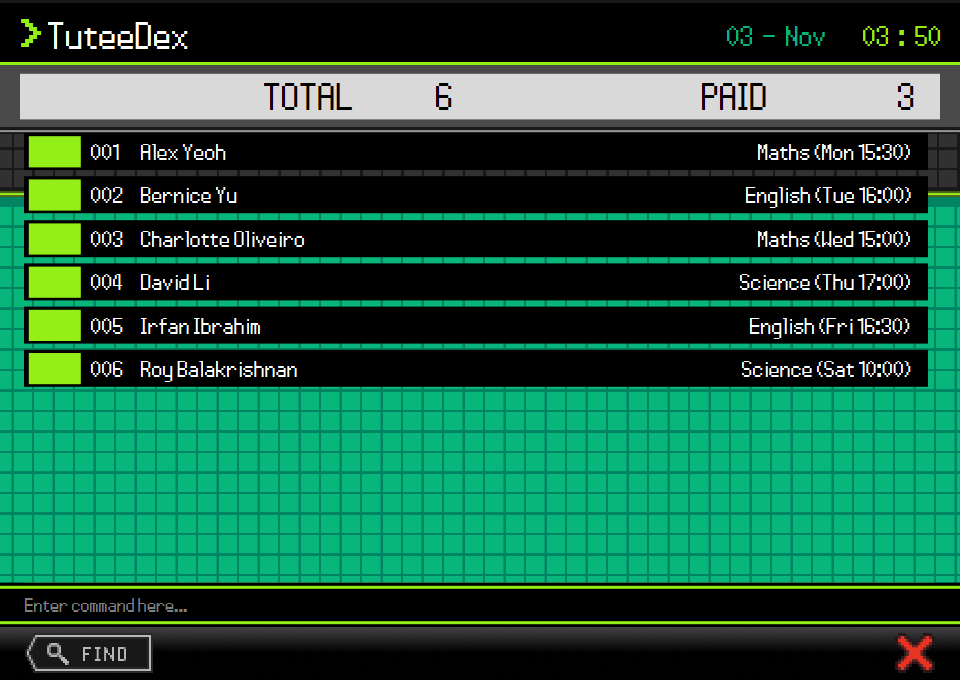
On a first launch without a data file, six fictional sample students demonstrate weekly Maths, English and Science lessons, tags, notes and mixed balances. The result box shows TOTAL 6 / PAID 3: 6 students are displayed and 3 of them owe nothing. Try
view 1for Alex's Monday 15:30 Maths lesson, note and SGD 120.00 balance, orlist -subjectsto see two students in each subject group. Existing data files, including ones with no students, load as saved and do not receive sample students.Type a command in the command box and press Enter to execute it. For example, type
helpand press Enter to open the help window.
Some example commands you can try:list: Lists all active students.add n/John Doe p/98765432 a/John street, block 123, #01-01 d/10-Aug s/Maths day/MON time/15:30 o/20: Adds a student namedJohn Doeto TuteeDex.delete 3thendelete confirm: Previews and deletes the 3rd student shown in the current list.clear confirm: Deletes all students.exit: Exits the app.
Refer to the Features section below for details of each command.
Features
The header shows your computer's local date as DD - MMM (for example, 03 - Nov) and its time as HH : MM
in 24-hour format, updating automatically. Command results use one line when they fit;
longer results wrap into a two-line display. Scroll vertically to read any remaining
text.
Some command results refer to students as contacts, for example Found 2 contacts. or
No matching contact found at the specified index. In TuteeDex, a contact always means a student.
After every successful list, the result box shows a TOTAL / PAID banner instead of a text message.
TOTAL is the number of students displayed and PAID is how many of them have an outstanding amount of zero.
The bar at the bottom of the window has two buttons:
- The pixel FIND button puts
findat the start of the command box, keeping any text you already typed after it, and moves the cursor to the end. For example, typeAlex, select FIND, then press Enter to runfind Alex. The button does not run the search by itself. - The red pixel X button closes TuteeDex, the same as the
exitcommand.
The student name and subject fields resize with the window, sharing their available
width in a 3:2 ratio. Text that does not fit ends with ...; widen the window to see
more text, or hover over a name or subject to read its full tooltip. Subjects and
lesson times are aligned to the right. The tiled background stays at a fixed scale
as the window is resized.
Notes about the command format:
Words in
UPPER_CASEare the parameters to be supplied by the user.
For example, inadd n/NAME, replaceNAMEwith a value such asJohn Doe.Items in square brackets are optional.
For example,edit INDEX [d/START_DATE]can be used asedit 1 d/10-Augor as part of an edit containing other optional fields.Items followed by
...can appear zero or more times.
This notation is used only when a command explicitly supports repeated values.Parameters can be in any order.
For example, if the command specifiesn/NAME p/PHONE_NUMBER,p/PHONE_NUMBER n/NAMEis also acceptable.Extraneous parameters for
helpare ignored.
For example,help 123is interpreted ashelp.If you are using a PDF version of this document, be careful when copying and pasting commands that span multiple lines as space characters surrounding line-breaks may be omitted when copied over to the application.
Tip: Press Up in the command box to bring back the commands you entered earlier, newest first, and
Down to move forward again. This is handy for fixing a typo in a long add or edit command. Going down
past the newest command gives back whatever you were typing. The history is kept until you close TuteeDex.
Viewing help: help
Opens a help window listing the command formats. Scroll to see every format,
and hover over a row to read its full text in a tooltip.
Select the blue here link to open the full user guide in your default browser.
Close the help window with its pixel close button or press Escape.
You can also open help through F1.
Format: help
Adding a student: add
Adds a student profile to TuteeDex.
New students require at least one subject with a weekly lesson day and time. Older saved
students may have no subjects and display Not specified. They remain usable as saved;
TuteeDex does not invent schedules or add subjects to them. Use, for example,
edit 1 s/Maths day/MON time/15:30 to supply a real lesson schedule. Students without
subjects remain in the normal list and TOTAL/PAID counts but have no entry in list -subjects.
Names must start with a letter from any language and may contain letters, accent marks attached to a letter, ordinary spaces, hyphens (-), and straight or curly apostrophes (', ’). Examples: Anne-Marie, O'Connor, O’Connor, José (including a combining accent), and 张伟. Digits, control characters, and other punctuation are rejected. Spelling is preserved; surrounding whitespace is trimmed by Add, Edit, and CSV import.
Format: add n/NAME a/ADDRESS p/PHONE_NUMBER d/START_DATE s/SUBJECT day/DAY time/TIME [s/SUBJECT day/DAY time/TIME]... [o/OUTSTANDING_AMOUNT] [t/TAG]... [notes/NOTE]
Note: START_DATE must be a valid calendar date in DD-MMM format, for example 10-Aug.
The day must have two digits, so write 01-Jan; 1-Jan is rejected. Month names are case-insensitive. 29-Feb is allowed because no year is specified; 31-Feb and unknown months are rejected.
Note: OUTSTANDING_AMOUNT is optional and defaults to 0. It must be a nonnegative number with no more than two decimal places, and at most 1000000 (SGD 1,000,000.00). Do not include a currency symbol, sign, separator, or exponent.
Note: At least one subject lesson is required for new students. Enter each lesson as
s/SUBJECT day/DAY time/TIME, in that order. DAY is one of MON, TUE, WED, THU,
FRI, SAT, or SUN (letter case is ignored), and TIME is a 24-hour start time in strict
HH:mm format, such as 09:00 or 15:30. Each subject has exactly one weekly lesson.
Repeat the complete triplet for multiple subjects. Subject names must be 1–50 characters after
trimming surrounding whitespace and collapsing repeated ordinary spaces into one. Names may contain
English letters, digits, spaces, and the symbols + & ( ) . ' -, including at least one letter or digit,
for example C++, Maths & Science or Maths (H2). Semicolons, commas, slashes, internal tabs and line
breaks are not allowed. Capitalization is preserved. A student cannot have two subjects with the same
name, ignoring letter case and extra spaces, even if their lesson times differ.
For example, H2 Maths is stored as H2 Maths and counts as the same name as h2 maths.
Comma-separated subjects are not supported.
Note: notes/NOTE is optional and stores one free-text note per student.
Omitting it or supplying a blank value stores no note. Surrounding spaces are
trimmed; internal spaces, punctuation, and display case are preserved.
Specify notes/ only once. Repeating it is an error and no student is added.
As with other Add values, recognised field prefixes preceded by a space mark
the next field, rather than literal note text. Any other letter-led word ending in /
after a space, such as x/ or P/, is an unknown prefix and the command is rejected,
so write w/o as without. Notes are saved automatically
and appear in view INDEX. Existing data without notes loads with empty notes.
Tags are optional descriptive labels, separate from subjects:
- Supply one
t/prefix per tag, such ast/A-Level t/Needs revision. Omittingt/creates a student with no tags. - Tags accept letters (A-Z and a-z), digits, spaces, and hyphens. Surrounding spaces are trimmed, internal spaces are preserved, and tags are stored in lowercase.
- Repeated tags, including case variants such as
t/A-Level t/a-level, are combined. Tag order does not matter. - Every tag must be valid. Blank tags, including
t/A-Level t/, reject the entire command withTags must contain only letters, digits, spaces, or hyphens and must not be blank.
An add command is rejected as a duplicate when name, phone, address and start date
match an existing student, even if outstanding amount, subjects, tags, notes or archive status differ.
Letter case and extra spaces are ignored when matching, so amy bee with d/10-aug matches an existing
Amy Bee with d/10-Aug.
Students may share a full name if their phone, address or start date differs.
A duplicate produces This contact already exists in TuteeDex and
does not add another student.
Examples:
add n/John Doe a/John street, block 123, #01-01 p/98765432 d/10-Aug s/Maths day/MON time/15:30add n/Betsy Crowe a/Newgate Prison p/12345678 d/19-Sep o/600 s/H2 Chemistry day/TUE time/09:00 s/Physics day/FRI time/16:30add n/Amy Bee a/Block 1 p/91234567 d/10-Aug s/Maths day/WED time/14:00 notes/Revise fractionsadd n/Peter Parker a/Block 9 p/91234567 d/10-Aug s/Physics day/SAT time/10:30 t/A-Level t/Needs revision
Viewing a student profile: view
Format: view INDEX
Displays the name, phone, address, start date, outstanding amount, subjects with their weekly lesson
day and start time, tags, and notes
of the student at INDEX in the currently displayed list. A student with no
note has an empty Notes: value. The index must be a positive integer and
refer to a displayed student; otherwise, the command shows an error.
Viewing a profile does not change student data or the current list.
Each contact card displays the student's index, name, and subjects. Long names and
subjects are shortened to fit the compact card. Hover over a card to see the
remaining profile details, or use view INDEX to display the complete profile.
Exporting students: export
Exports all students, including archived students, to a UTF-8 CSV file in the home folder (the folder TuteeDex was started from).
Format: export
The generated file is named contacts-YYYYMMDD-HHMMSS-milliseconds.csv. Each contact occupies one row. The CSV
contains the name, phone, address, start date, outstanding amount, subjects, tags, notes, and archive status. Multiple
subjects or tags are joined with ; .
Address, subjects, tags and notes cells starting with =, +, -, @ or an apostrophe are prefixed with an
extra apostrophe so spreadsheet apps treat them as text. Importing removes this extra apostrophe to restore
the original values.
Importing students: import
Adds students from a CSV file written by export, for example to move students from another computer or to
restore students you deleted. Importing never removes or changes the students already in TuteeDex.
Format: import FILE_PATH [confirm]
- Without
confirm, TuteeDex only checks the file and shows which students would be added. Nothing changes. - Add
confirmat the end to add them. If any row has a problem, nothing is imported, so a file is never half imported. - The file must be inside the home folder (the folder TuteeDex was started from), or a folder inside it.
This is where
exportsaves its files. For safety, TuteeDex does not read files anywhere else, so move or copy the file into that folder first. FILE_PATHis relative to that folder, for examplestudents.csvorterm 4/students.csv. Paths with spaces work, with or without double quotes around them. Only.csvfiles are accepted.- The first row must be the header that
exportwrites. Each following row is one student with the same 9 columns: name, phone, address, start date, outstanding amount, subjects, tags, notes and archived (trueorfalse). - Subjects are written as
SUBJECT (DAY HH:mm)and separated by semicolons, for exampleMaths (Mon 09:00); H2 Chemistry (Wed 11:30). Tags are separated by semicolons. A blank outstanding amount means0, and blank tags or notes mean none. - Every value is checked with the same rules as
add. Problems are listed by spreadsheet row number, for exampleRow 4: Phone numbers should only contain numbers, and it should be 8 digits long.Up to 10 problems are shown. - A row that is exactly the same as a student already in TuteeDex, or as an earlier row in the file, is skipped, so importing the same file twice is safe.
- A row with the same name, phone, address and start date as a stored student, but different outstanding amount,
subjects, tags, notes or archive status, is reported as a problem. Use
editto change the stored student instead. The same rule applies to conflicting rows within the file; preview and confirm both reject the whole import. - Files saved by Excel work too, as long as the columns are not changed.
- If you edit the file in a text editor, wrap any value that contains a comma, a double quote or a line break
in double quotes, and write each double quote inside it twice, for example
"Needs ""revision""". Spreadsheet apps such as Excel do this for you. A row with unbalanced or misplaced double quotes is reported as a problem instead of being imported with changed text.
Examples:
import contacts-20261024-175424-176.csvchecks a file thatexportsaved earlier.import contacts-20261024-175424-176.csv confirmadds the new students from that file.import "term 4/students.csv" confirmadds students fromstudents.csvin theterm 4folder inside the TuteeDex folder.
Listing and filtering students: list
Shows active students, or filters active students by one or more subjects
or tags. Archived students are not shown.
Each card shows the student's index, name, and subjects. Use view INDEX to see
the full profile.
Format: list [-summary] [s/SUBJECT]... [t/TAG]..., list -archived, or list -subjects
- Plain
listrestores all active students, including after a Find or filter. - Supply one
s/per subject. A student matches if they take any requested subject. Subject names match completely, ignoring case and extra spaces:s/H2 MathsmatchesH2 Maths, buts/Mathsdoes not matchAdditional Maths. Subjects use the same validation as Add; equivalent repeated values are combined. - Supply one
t/per tag. A student matches if they have any requested tag (OR matching). Match complete tags, ignoring case and surrounding spaces:t/Needs revisionmatchesneeds revision, butt/revisiondoes not. Tags use the same validation as Add; equivalent repeated values are combined. Profiles without tags do not match. - Subject and tag prefixes may be combined in either order. Match any requested subject
and any requested tag:
list s/Maths s/Physics t/A-Levelmeans(Maths OR Physics) AND A-Level. A student matching several values appears only once. An omitted category places no restriction on that category. - Each filter searches all saved students, not just the current search results.
Results follow the current sort order, or the order students were added when no sort is applied.
Indexes used by
view,edit, anddeleterefer to the newly displayed list. - Every successful
listshows the TOTAL / PAID banner for the displayed students. An empty result, such as a filter with no matches or no active students, shows TOTAL 0 / PAID 0. - Blank or invalid values, uppercase or unknown prefixes, and unprefixed arguments
such as
list 3are rejected and leave the displayed list unchanged. Listing never changes student data. -summaryis optional and has no extra visible effect, because the banner is always shown. Enter it exactly as written, at most once, anywhere among the filters, for examplelist s/Maths -summary. It cannot be combined with-archivedor-subjects.
Edge case: -summary counts as the flag only when it is a separate word. Text such as t/Pre-summary or
t/Needs -summary revision stays part of the tag value; a separate -summary at the end of the command is the flag.
Examples (these work on the sample data):
list s/Maths s/Englishshows students taking either subject.list t/Primaryshows students taggedprimary.list s/Maths s/Science t/Secondaryshows students taking Maths or Science who are also taggedsecondary.list -summary t/Primary s/Mathsshows the same students aslist t/Primary s/Maths(Charlotte Oliveiro).find Nobodyfollowed bylist t/Primarystill finds matching students among all saved students.listshows every active student again.
Grouping students by subject
list -subjects shows active students grouped under their subjects. Use it on its own; it cannot be combined
with -summary, -archived, or s//t/ filters.
- Each group lists the students taking that subject, with each student's own lesson day and start time. Lesson days and times are aligned to the right. Students taking the same subject at different times share one group.
- Subject headings are in alphabetical order. Students in a group are alphabetical, unless a
sortis applied. - Archived students are not shown.
- The TOTAL/PAID banner counts each active student once, even if they appear under several subjects. Students without subjects still count, although they appear in no group.
- If no active student has a subject, the group area shows
No subjects found for the active contacts.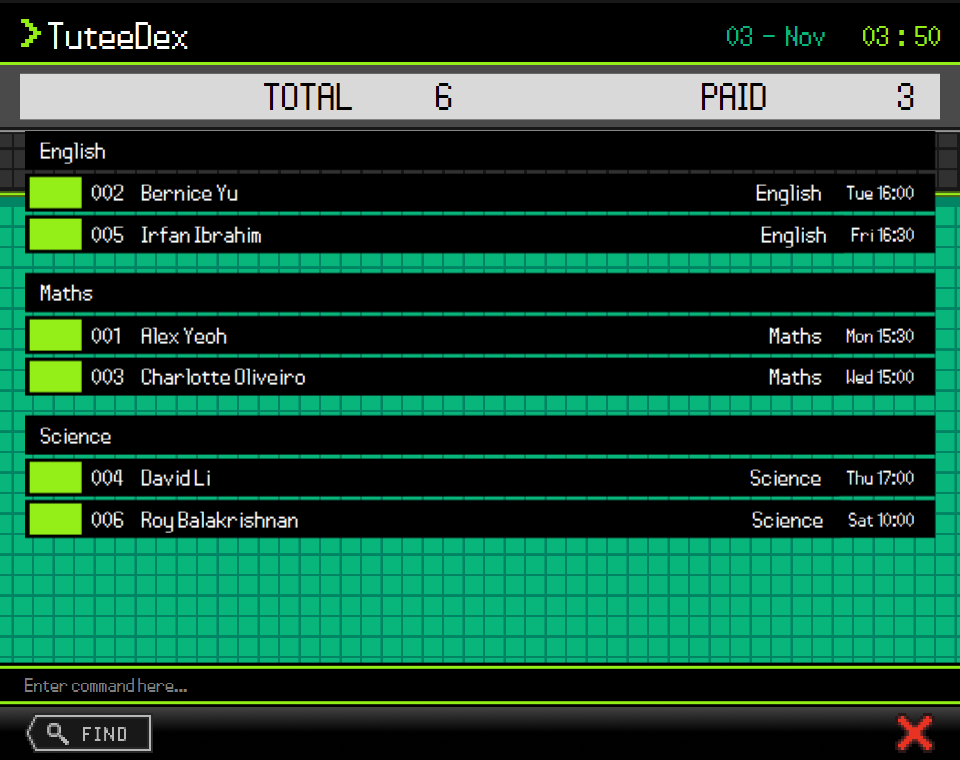
list -subjects on the sample data: students grouped under the English, Maths and Science headings.
When does the grouped display stay?
- It stays for
view,help,export,sort, thedeleteandclearpreviews, and any command that fails.view,help,export, baresortand the previews also keep the scroll position. - It switches back to the normal student list after any command that changes students, a successful
find, and any otherlist. This includes aneditthat changes nothing and animportthat only previews or adds nobody.
Listing archived students
list -archived displays only archived students, in the current sort order, or in the order they were added
when no sort is applied. It replaces any previous search or filter and does not change saved students.
The TOTAL/PAID banner counts only the displayed archived students. If no archived students
exist, the list is empty and the banner shows TOTAL 0 / PAID 0.
Use -archived on its own. Combining it with -summary, subject/tag filters,
or other arguments is not supported and shows an error without changing the
current list. A standalone -archived token is reserved for this option and
cannot be included as a separate word within a tag or subject filter value.
Plain list returns to active students; subject/tag lists and summaries also
continue to exclude archived students. For example:
- On the sample data,
archive 2(Bernice Yu), thenlist -archived, shows Bernice in the archived list. view 1shows the first student in that displayed archived list.listreturns to the active list without restoring archived students.
Sorting the current display: sort
Format: sort FIELD/DIRECTION [FIELD/DIRECTION]..., sort, or sort reset
Supported fields are n/ (name), o/ (outstanding amount), d/ (start date), and slot/ (upcoming lesson).
Supply 1 to 4 distinct fields, separated by spaces, with lowercase prefixes and asc or desc directions.
The first field has highest priority; later fields resolve ties. A new Sort replaces the previous criteria.
Bare sort reports the current order. Commands and the reset keyword are lowercase; sort RESET is rejected.
sort reset clears the criteria without changing the filter or the grouped/ungrouped display. The ungrouped display
returns to the order students were added; the subject-grouped display returns to alphabetical students within each group.
- Names are compared alphabetically without regard to case; amounts are compared numerically.
- Start dates are compared by calendar month and day, without a year. Existing invalid dates stay last.
- Slots use the next weekly start relative to the computer's local time. A start exactly now is due now; a start that has passed occurs next week. Lessons have start times, not durations.
- In the ungrouped display, every student appears once, numbered
001,002,003, and so on in displayed order.slot/ascselects each student's nearest upcoming lesson, then orders students from nearest to furthest.slot/descselects each student's furthest upcoming lesson, then orders students from furthest to nearest. Each row shows the selected subject and slot; all subjects remain stored. Equal slots use the first subject. Students without subjects showNo lesson slotand stay last when compared by slot, in either direction. - After
list -subjects, Sort orders lessons within each subject group while keeping headings alphabetical. Each lesson uses its own subject's schedule. Students can appear in several groups with the same student index. Students without subjects have no grouped rows, but remain in the unique student counts. - Use the printed student index. In the ungrouped display it is the row position. In subject groups it refers to the same current unique-student order, so group indexes may repeat and need not increase from top to bottom. View/Edit/Delete act on the whole profile; deleting a grouped entry removes that student and all their lessons. Total and paid counts count each student once.
- Sort preserves the filter and student data. Find/List retain the sort; edits reorder students as needed. Students that tie on every field keep the order they were added. Valid criteria work on an empty display.
- Upcoming ordering refreshes on Sort, filter changes and profile changes. It does not move automatically as
time passes; rerun Sort or List to refresh it. Bare
sortand View do not refresh the reference time. - Invalid fields, directions, repeated fields or extra arguments reject the entire command without changing
the current order, filter or grouped/ungrouped display. Bare
sort, View, Help, Export and thedeleteandclearpreviews preserve the displayed panel. TuteeDex remembers the last applied sort when you close it (see Reopening where you left off).
Examples:
sort o/desc n/ascputs the largest balances first, then sorts equal balances by name.sort slot/asc n/ascshows students' nearest upcoming lessons first, breaking equal-slot ties by student name.find Amyfollowed bysort d/ascsorts only the current search results.list -subjectsfollowed bysort slot/asc n/ascorders upcoming lessons within each subject group.
Editing a student profile: edit
Updates one or more fields of an existing student profile in TuteeDex.
Format: edit INDEX [n/NAME] [p/PHONE_NUMBER] [a/ADDRESS] [d/START_DATE] [o/OUTSTANDING_AMOUNT] [s/SUBJECT day/DAY time/TIME]... [t/TAG]... [notes/NOTE]
- Edits the student at the specified
INDEX. The index refers to the index number shown in the displayed student list. The index must be a positive integer 1, 2, 3, ... - After a search such as
find Bernice,edit 1 ...edits the first search result. - At least one of the optional fields must be provided.
- Existing values will be updated to the input values.
- Fields that are not supplied remain unchanged, including the outstanding amount, tags, subjects, and notes.
- Supplied subject lesson triplets replace the entire subject set. Repeat the complete
s/SUBJECT day/DAY time/TIMEtriplet for multiple subjects. The triplet order, day names, time format, subject validation, and unique-name rule are the same as foradd. Changing only the letter case or order of subjects, with the same lesson slots, changes nothing and keeps the existing spelling and order. - Supplied
t/TAGvalues replace the entire tag set. Repeatt/for multiple tags. Tags follow the same rules as inaddand are stored in lowercase; repeated tags are combined. A single blankt/clears all tags. Mixing blank and nonblank tags, or repeating blankt/, is invalid. notes/NOTEreplaces the note. A blanknotes/clears it; omitting the prefix preserves the existing note. Surrounding whitespace is trimmed; internal spacing, punctuation, display case, and Unicode text are preserved. Specifynotes/only once. The prefix rules below also apply inside notes.- Field values follow the same rules as
add: valid names, nonblank addresses, exactly eight-digit phone numbers, start dates inDD-MMMformat with a two-digit day (02-Feb, not2-Feb;29-Febis allowed), and outstanding amounts from0to1000000with at most two decimal places. - Use
o/0to reset the outstanding amount to zero. A blankn/,p/,a/,d/oro/is invalid. - Spaces before and after values are ignored. Other text keeps its letter case and spacing, except tags (lowercase).
- Fields may appear in any order after the index, but each subject's
s/,day/andtime/must stay together in that order. - Single-value fields (
n/,p/,a/,d/,o/andnotes/) may appear only once. Tags may repeatt/, and each extra subject repeats the wholes/SUBJECT day/DAY time/TIMEgroup.
How TuteeDex reads prefixes:
editand all prefixes are lowercase. Uppercase or unknown prefixes, such asP/orx/, are rejected.- A word that starts with a letter and ends in
/, typed after a space, is read as a prefix, even inside a value such as a note. So a note containingp/starts a new phone field. Writew/oaswithout. - A slash elsewhere stays part of the value, for example
#02/03in an address orhttps://example.comin a note. - An edit is rejected as a duplicate if name, phone, address and start date match another student.
Outstanding amount, tags, subjects, notes and archive status do not distinguish duplicates.
Changing only
o/, or usingpaidorcharge, keeps the student's identity. Letter case and extra spaces are ignored, as inadd, soedit 1 n/amy beeonAmy Beeonly changes how the name is written. - If any supplied field is invalid or the edit creates a duplicate, no fields are changed and the displayed list remains unchanged.
- A changed profile produces
Edited contact: <updated contact name>, refreshes its displayed values, and keeps the current search or subject/tag filter and sort order. A profile that no longer matches disappears from the filtered list; a changed sort key can move it. When the edited student's index changes or disappears, feedback asks you to check the displayed indexes before your next command. Editing inlist -archivedkeeps that view and the student's archive status; useunarchiveto restore the student to the active list. The changes are saved automatically. - If all supplied values match the existing values, the result is
No changes made to contact: <contact name>and the current displayed list is preserved. Fromlist -subjects, the normal student list is shown instead.
Errors:
| Input problem | Feedback |
|---|---|
| Missing or invalid index | INDEX must be a positive integer! (e.g., 1, 2, 3, …) |
| Index beyond the displayed list | No matching contact found at the specified index. |
No field supplied, e.g. edit 1 | At least one field must be provided to edit. |
| Repeated single-valued field | Each contact field may be specified only once in an edit command. |
| Unknown or uppercase prefix | Invalid command format. followed by Edit usage instructions |
| Invalid field value | The same field validation error as add |
| Duplicate profile | This contact already exists in TuteeDex. |
Examples:
edit 1 p/91234567 d/20-Octedits the phone number and start date of the first student.edit 2 n/Bernice Tanedits the name of the second student.edit 1 o/600changes the first student's outstanding amount to SGD 600.00.edit 1 o/0resets the first student's outstanding amount to zero.edit 1 t/A-Level t/Needs revisionreplaces the first student's tags with these two tags.edit 1 t/clears the first student's tags while keeping its other fields.edit 1 s/Maths day/MON time/15:30 s/H2 Chemistry day/THU time/17:00replaces the first student's subjects and lesson slots while keeping its other fields.edit 1 notes/Revise fractionsreplaces the first student's note while keeping its other fields.edit 1 notes/clears the first student's note.find Bernicefollowed byedit 1 a/32, Clementi Roadupdates only the address of the first search result.
Recording payments: paid
Records a full or partial payment for the student at the specified displayed index.
Format: paid INDEX [AMOUNT]
paid INDEXclears the student's outstanding balance.paid INDEX AMOUNTreduces the balance byAMOUNT. The amount must be positive and have at most two decimal places. Otherwise TuteeDex showsAmount must be a positive number with at most two decimal places, such as 50 or 20.50.An amount of0showsAmount must be greater than 0.- A payment larger than the current balance is rejected, and the balance is unchanged.
- The index refers to the currently displayed student list.
Examples:
paid 1marks the first displayed student's balance as paid in full.paid 1 20.50records a SGD 20.50 payment.
Charging a student: charge
Adds a charge to a student's outstanding balance.
Format: charge INDEX AMOUNT
AMOUNTis required, must be positive, and may have at most two decimal places.- A malformed, negative or over-precision amount is rejected with
Amount must be a positive number with at most two decimal places, such as 50 or 20.50.An amount of0givesAmount must be greater than 0., and a missing amount givesInvalid command format!with the usage. - A balance cannot go above SGD 1,000,000.00. A charge that would do so is rejected and the balance is unchanged.
- The index refers to the currently displayed student list.
Example: charge 1 50 adds SGD 50.00 to the first displayed student's balance.
Locating students by name: find
Finds active students whose names contain any of the given keywords. Archived students are excluded, even when their names match. Searching does not change archive status or any other profile fields.
Format: find KEYWORD [MORE_KEYWORDS]
- The search is case-insensitive; for example,
hansmatchesHans. - Keyword order does not matter; for example,
Hans BomatchesBo Hans. - The search considers only names.
- A keyword matches the start of any word in the name; for example,
HanmatchesHans GruberandGrumatches it too, butansdoes not. - Students matching at least one keyword are returned (an
ORsearch); for example,Hans BoreturnsHans GruberandBo Yang. - Matching contacts appear once. Feedback shows
Found 1 contact.orFound N contacts.. - No matches produce an empty list with
No contacts match the specified name keywords.. - Each search replaces the previous filter. Plain
listrestores all active students. - Missing keywords cause an error without changing the current results or saved data.
- You can also click the FIND button at the bottom left. It fills in
findin the command box for you; type the keywords and press Enter.
Examples:
find alexreturnsAlex Yeohfrom the sample data.find alex davidreturnsAlex YeohandDavid Lifrom the sample data.
Deleting a student: delete
Previews the specified student before permanent deletion. Check the displayed details, then type delete confirm as your next command. There is no undo. After confirmation, the student list refreshes and the remaining students are renumbered.
Format: delete INDEX, then delete confirm
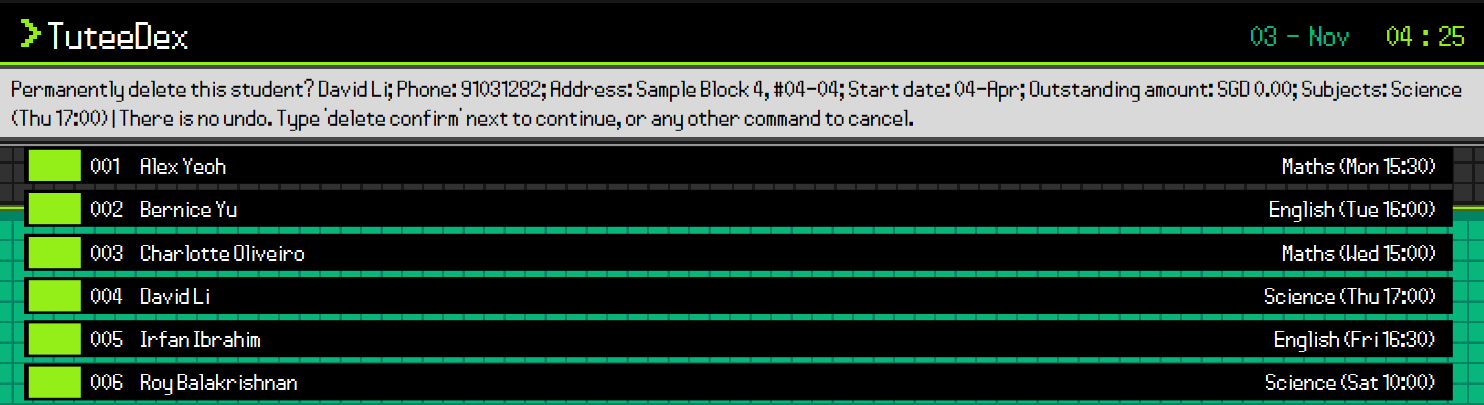
delete 4 on the sample data previews David Li and asks you to type delete confirm next.
INDEXis the position in the currently displayed student list, counting from 1, including search results.INDEXmust be one positive integer, such as1,2, or3.- The preview does not change or save student data. Any other command, including an invalid command, cancels it. For example, use
listto cancel. After a filter or sort change, rundelete INDEXagain to check the target. delete confirmrequires a preview immediately beforehand;delete INDEX confirmis rejected. A preview is not retained after restart.- If saving a confirmed deletion fails, the student is restored in memory and an error is shown. Preview and confirm again to retry.
- A successful command displays
Deleted student: <student details>. - If
INDEXis invalid, the app explains that it must be a positive integer. If it is larger than the displayed list, the app reports that no matching contact was found.
Examples:
listfollowed bydelete 2anddelete confirmdeletes the 2nd student in the displayed list.delete 4followed bydelete confirmdeletes David Li from the sample data.find Bernicefollowed bydelete 1anddelete confirmdeletes the 1st student in the results of thefindcommand.
Archiving a student: archive
Archives a student without deleting the student profile. Archived students are hidden from list and are excluded from its summary counts, but their data remains saved in TuteeDex.
Format: archive INDEX
- Archives the student at the specified
INDEX. The index refers to the index number shown in the displayed student list, likeview,editanddelete. - The index must be a positive integer 1, 2, 3, …
- Students who share a name can each be archived, because the index picks one profile.
- A successful command displays
Archived <name>.and refreshes the active student list. - If the index is larger than the displayed list, the command displays
No matching contact found at the specified index. - If the student is already archived, for example
archive 1afterlist -archived, the command displays<name> is already archived.
Examples:
listfollowed byarchive 2archives the 2nd student and removes them from the active list.find Irfanfollowed byarchive 1archives the 1st student in the results of thefindcommand.
Unarchiving a student: unarchive
Restores an archived student to the active student list. Unarchiving does not change the student's profile details.
Format: unarchive INDEX
- Restores the student at the specified
INDEXin the displayed list. Uselist -archivedfirst to see archived students and their indexes. - The index must be a positive integer 1, 2, 3, …
- A successful command displays
Unarchived <name>., returns to the active student list and makes the student appear inlistagain. - If the index is larger than the displayed list, the command displays
No matching contact found at the specified index. - If the student is already active, the command displays
<name> is already active.
Example:
list -archivedfollowed byunarchive 1restores the 1st archived student to the active student list.
Clearing all students: clear
Deletes every student, including archived students. There is no undo, so TuteeDex asks you to confirm first.
Format: clear or clear confirm
clearonly shows how many students would be deleted, for exampleThis will permanently delete all 6 student(s), including archived students. There is no undo. Type 'clear confirm' to continue.Nothing changes.clear confirmdeletes them and showsDeleted all 6 student(s) from TuteeDex.- If there are no students, both
clearandclear confirmshowThere are no students to delete. - Anything else after
clear, such asclear 3orclear Confirm, is rejected without deleting anything. - Consider running
exportfirst, so you keep a copy of your students.
Exiting the program: exit
Exits the program.
Format: exit
Clicking the red X button at the bottom right of the window does the same.
Saving the data
TuteeDex automatically saves your students after every command that changes them. You do not need to save manually. If a change cannot be saved, for example because the data file is read-only, TuteeDex shows an error and undoes that change, so you can fix the problem and try the same command again.
Reopening where you left off
TuteeDex remembers which students you were looking at and in what order. When you open it again, it runs the
last sort you applied and then the last list or find you entered, so the same view comes back. For example,
if you close TuteeDex after sort o/desc and list -subjects, it opens with the subject groups, largest balances
first.
view,help,export,exit, baresortand commands that fail do not change what is remembered.sort resetclears the remembered order, so TuteeDex opens in the default order.deleteandeditkeep the students you were looking at, so TuteeDex still opens on that view. For example, afterfind Alex,delete 1, anddelete confirm, TuteeDex opens onfind Alexagain.- Commands that switch back to the normal list, such as
add,archiveorimport, make TuteeDex open on the normal list next time. So does aneditor a confirmeddeletefrom the subject groups, which shows the normal list afterwards. The sort order is kept. - When TuteeDex reopens on a
find, the result box says so, in case no students match any more. Typelistto see all students. - The view and order are saved in
preferences.jsonin the home folder when you close TuteeDex. If that file is edited so that a saved command is not a validlist,findorsortcommand, TuteeDex ignores it.
Editing the data file
TuteeDex data is saved automatically as a JSON file data/addressbook.json inside the home folder. Advanced users are welcome to update data directly by editing that data file.
- The file must contain a JSON object whose
personsarray holds the students. A file with no students is{"persons":[]}. A root value ofnull, a missing or nullpersonsarray, or a null student entry is invalid (see the caution below). - Extra spaces in subject names are removed when the file loads, as in
add. The file itself is only rewritten on the next save. If this makes two of one student's subjects the same name, even with different lesson times, the file cannot load. Back it up and fix those entries; TuteeDex does not drop either lesson.
Duplicate students in older files: older files may contain students that differ only in outstanding amount, or only in the letter case or spacing of the name, address or month.
- When loading, TuteeDex keeps the first student's name and adds
Recoveredto each later duplicate's name, repeating it if needed (Twin Student,Twin Student Recovered,Twin Student Recovered Recovered). - All balances and other details are kept and nothing is merged. The new names are saved on the next automatic save.
- Check these students with
viewand useeditto give them distinguishing details. To restore the original name, first change the phone, address or start date so they differ. Delete one only after checking its balance. - Students whose name, phone, address, start date and balance are all exactly the same are still rejected as invalid.
Caution:
If your changes make the data file invalid, TuteeDex starts with no students at the next run. The invalid file stays on disk until you run a command that changes your students, such as add or edit. Commands that only show information, such as list, find, view, help and export, leave it untouched. Still, we recommend backing up the file before editing it.
Furthermore, certain edits can cause TuteeDex to behave in unexpected ways (e.g., if a value entered is outside of the acceptable range). Therefore, edit the data file only if you are confident that you can update it correctly.
FAQ
Q: How do I transfer my data to another computer?
A: Install the app on the other computer and overwrite the data file it creates with the data file from your previous TuteeDex home folder.
Alternatively, run export on the old computer, copy the CSV file it creates into the TuteeDex folder on the new
computer, then run import FILE_NAME.csv to check it and import FILE_NAME.csv confirm to add the students.
Import only adds students, so run clear confirm first if you do not want to keep the sample students.
Known issues
- Data files from v1.4 that store subjects without a day and time cannot be loaded. TuteeDex then
starts with an empty list. Copy the old
data/addressbook.jsonsomewhere safe before making any change, because the next change overwrites it. Other older files load normally.
Command summary
| Action | Format, Examples |
|---|---|
| Help | help |
| Add | add n/NAME a/ADDRESS p/PHONE_NUMBER d/START_DATE s/SUBJECT day/DAY time/TIME [s/SUBJECT day/DAY time/TIME]... [o/OUTSTANDING_AMOUNT] [t/TAG]... [notes/NOTE] e.g., add n/James Ho a/123, Clementi Rd, 123466 p/22224444 d/10-Aug s/Maths day/MON time/15:30 o/20 t/A-Level notes/Revise algebra |
| View | view INDEXe.g., view 1 |
| Export | export |
| Import | import FILE_PATH [confirm]e.g., import contacts.csv confirm |
| List | list [-summary] [s/SUBJECT]... [t/TAG]..., list -archived, or list -subjectse.g., list -summary s/Maths t/Primary |
| Sort | sort FIELD/DIRECTION [FIELD/DIRECTION]..., sort, or sort resete.g., sort o/desc n/asc |
| Edit | edit INDEX [n/NAME] [p/PHONE_NUMBER] [a/ADDRESS] [d/START_DATE] [o/OUTSTANDING_AMOUNT] [s/SUBJECT day/DAY time/TIME]... [t/TAG]... [notes/NOTE]e.g., edit 2 n/James Lee d/19-Sep o/20 s/Maths day/MON time/15:30 t/A-Level notes/Revise algebra |
| Paid | paid INDEX [AMOUNT]e.g., paid 1 20.50 |
| Charge | charge INDEX AMOUNTe.g., charge 1 50 |
| Find | find KEYWORD [MORE_KEYWORDS]e.g., find alex david |
| Delete | delete INDEX, then delete confirme.g., delete 3, then delete confirm |
| Archive | archive INDEXe.g., archive 2 |
| Unarchive | unarchive INDEXe.g., list -archived, then unarchive 1 |
| Clear | clear, then clear confirm |
| Exit | exit |